
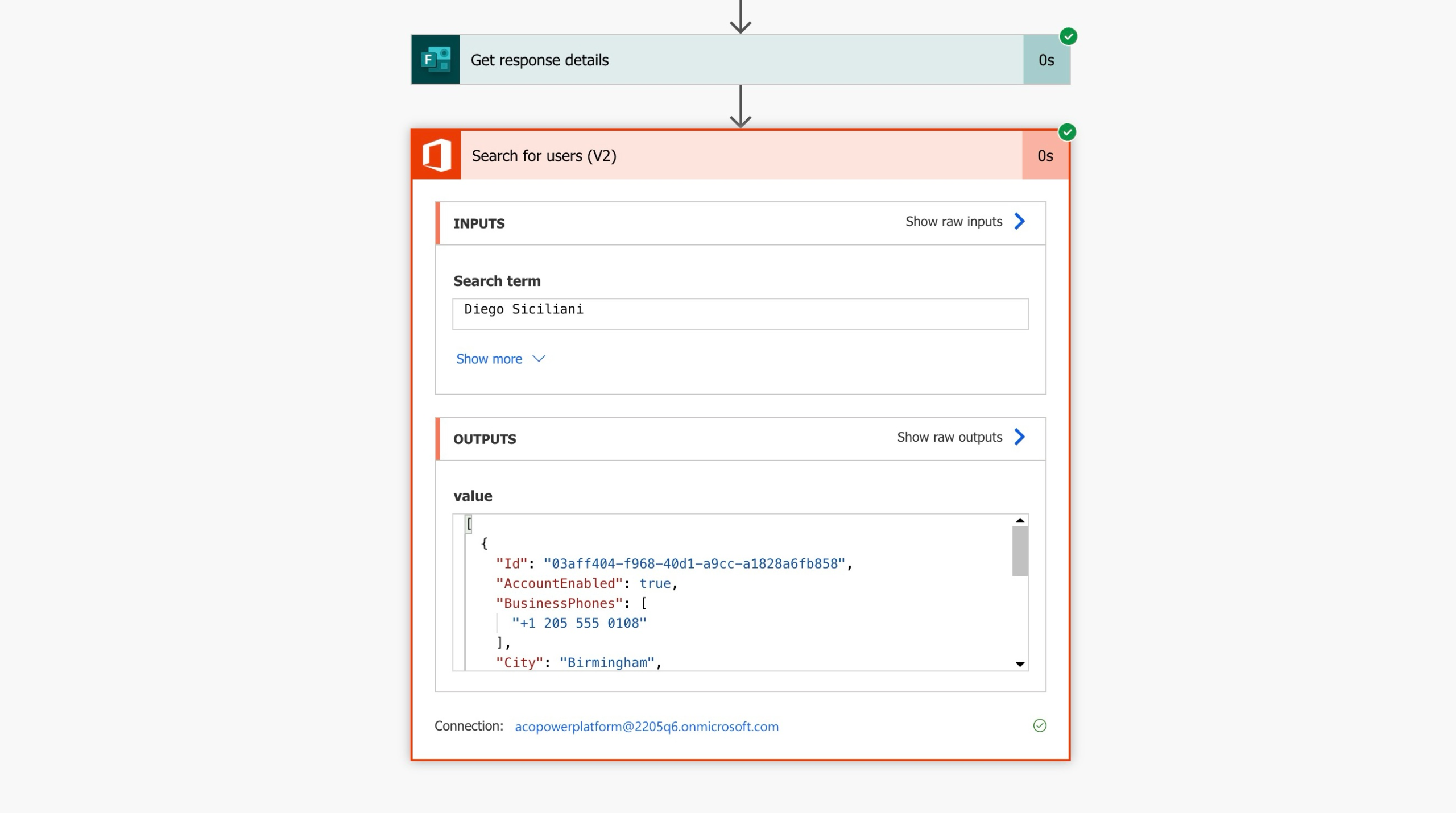
This tutorial covers how to return a user’s email address based on a name selected from a dropdown in Microsoft Forms. It walks through how to use the Search for Users (V2) action with that selected value and how to output a single email address from the array it returns.
What You’ll Learn
- Use the Search for Users (V2) action to look up user details
- Understand the structure of the output and how it returns an array
- Write an expression to return a single email address
- Avoid the Apply to Each loop when working with single values
Search for Users
In this section, you’ll use the Search for Users (V2) action to look up a user based on a name selected from a Microsoft Forms dropdown. This action looks up Microsoft 365 users and returns an array of matching results.
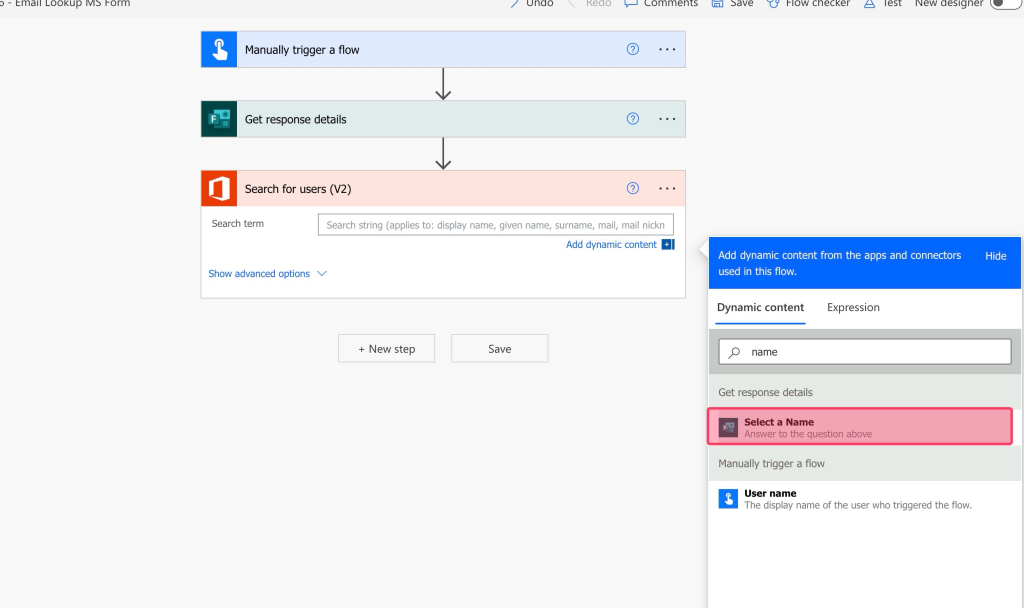
Add a Search for Users (V2) action.
Search for the dynamic content of the MS Form question that contains the search term. In this case, it’s a name.
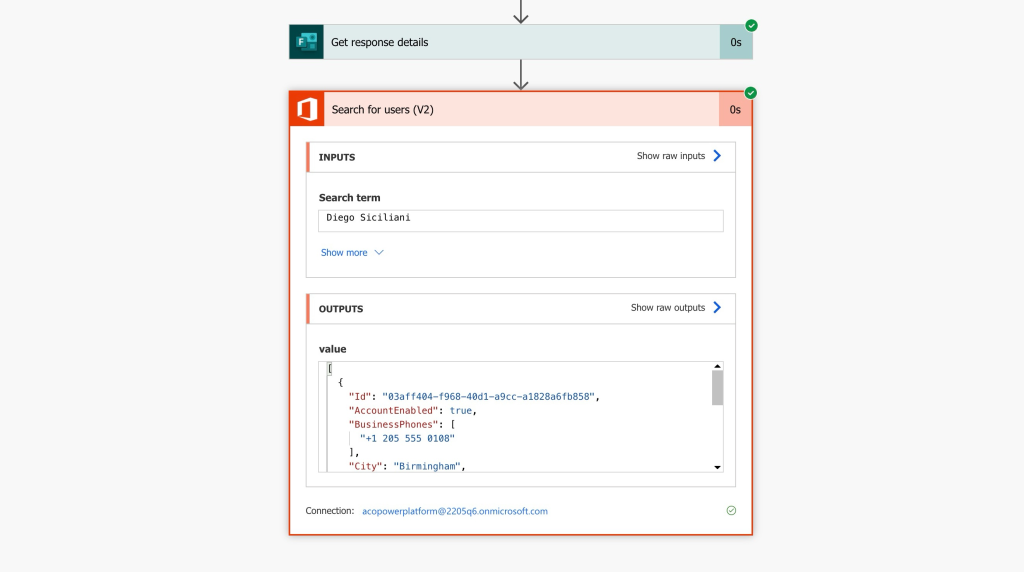
Run a test.
Review the outputs of your flow.
Compose the Email
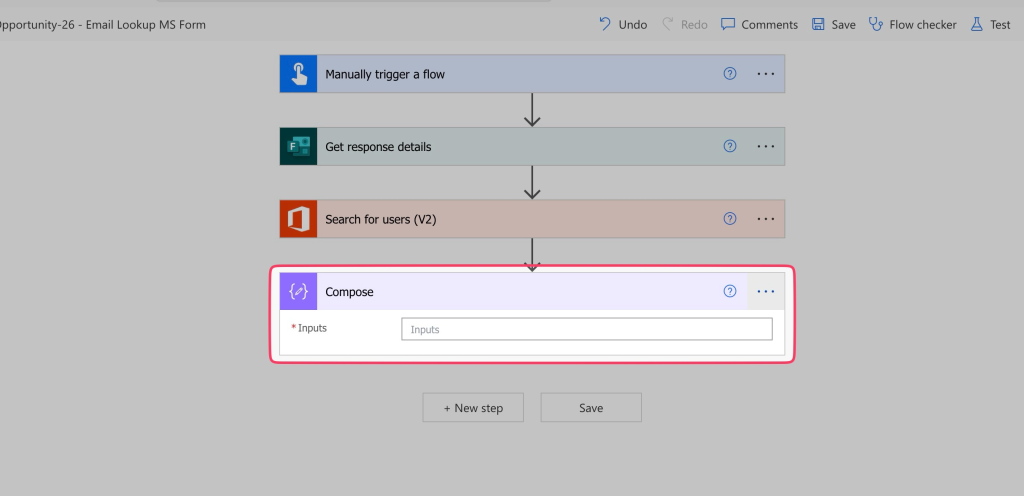
In this section, you’ll learn how to extract the user’s email address from the array returned by the Search for Users (V2) action. Instead of inserting dynamic content, you’ll use a Compose action to write a custom expression to avoid the Apply to Each loop.
Add a Compose action to your flow. This step is optional, you can insert the expression used in subsequent actions.
However, I prefer to use Compose actions in my flow to help with troubleshooting. It also streamlines the flow building process if I have to use the output in subsequent actions of my flow.
The Search for Users (V2) action will always output an array of items (even if it’s a single item).
When you try to insert the Email dynamic content into the Compose action, the Compose action will automatically nest itself inside an Apply to Each action.
To output a single email, you will need to use an expression to avoid the Apply to Each action.
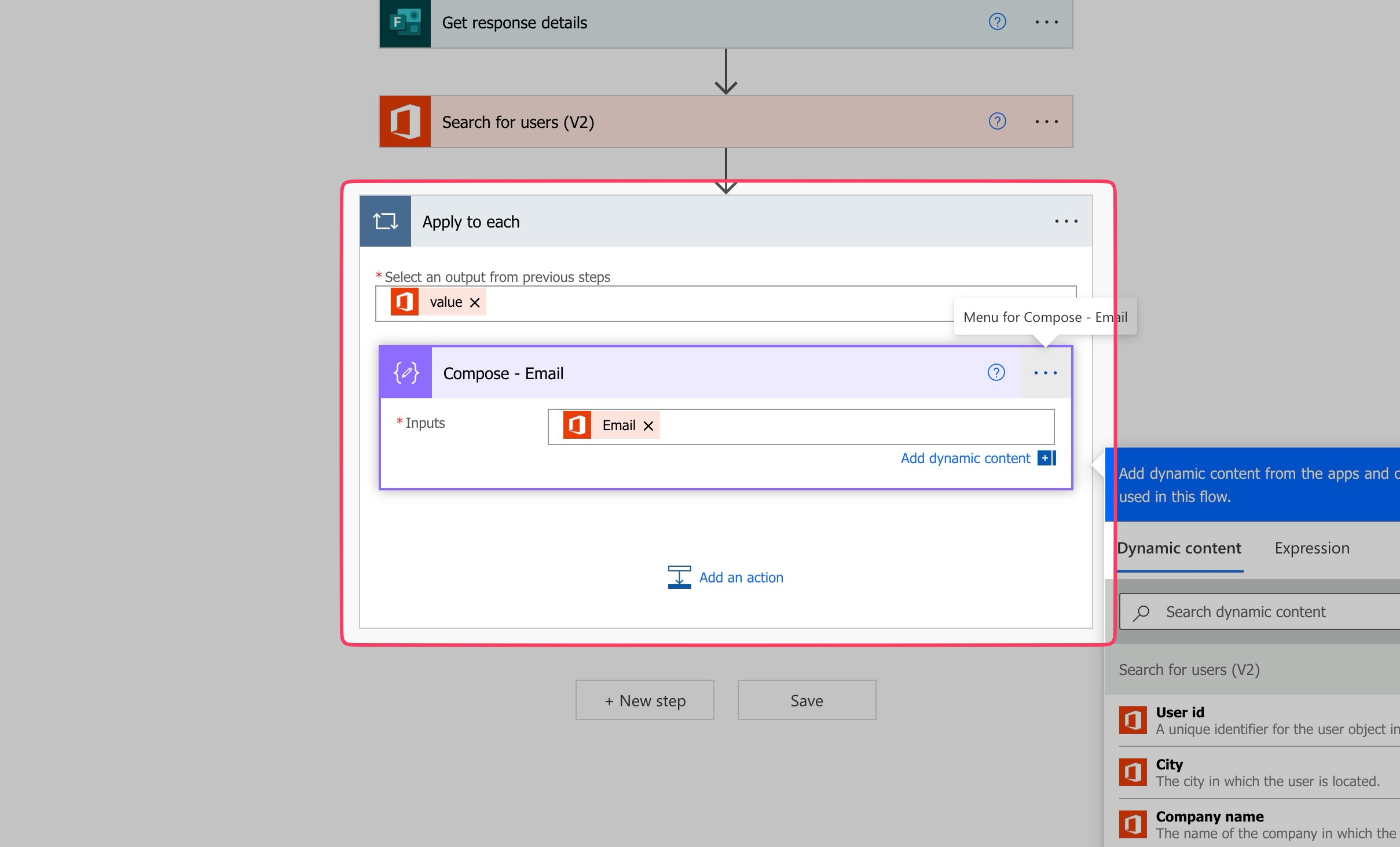
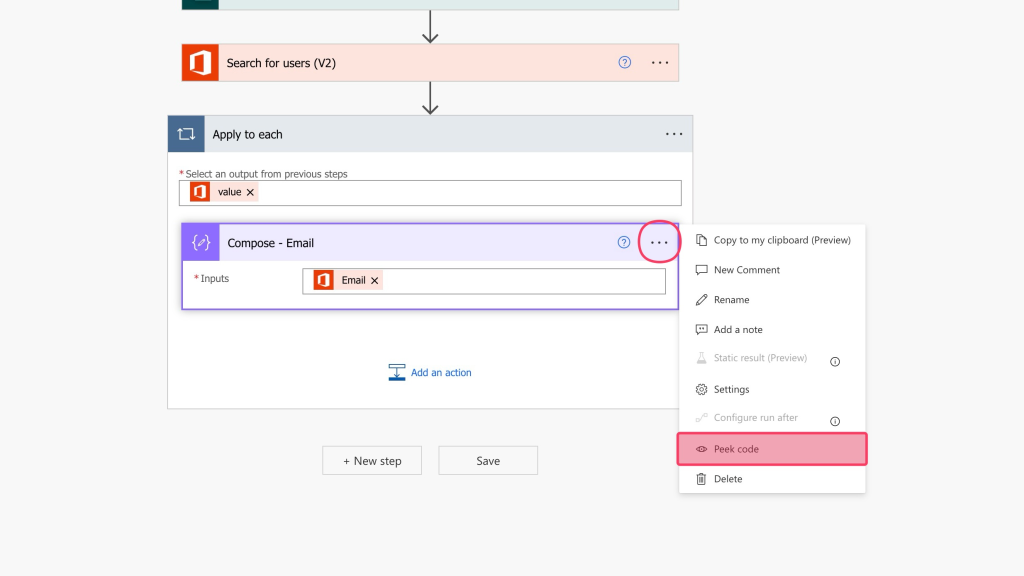
Click on the three dots of the Compose action and select Peek Code.
Highlight the question mark and the content just before the closing double quote marks and copy it to your clipboard.
In this case it’s:
?['Mail']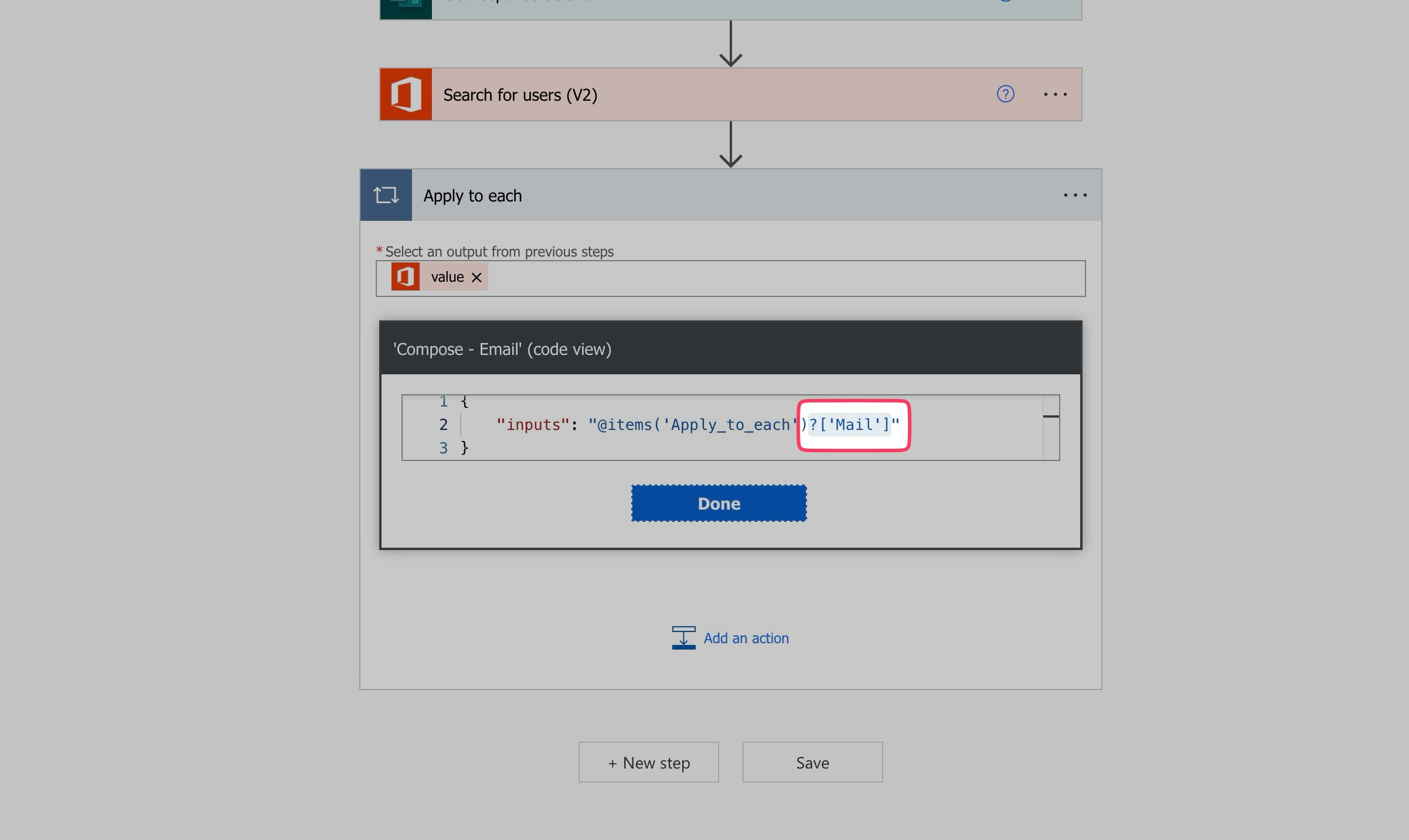
Remove the Email dynamic content from the Compose action by clicking on the ‘x’ of the dynamic content label.
Drag the Compose action outside of the Apply to Each action.
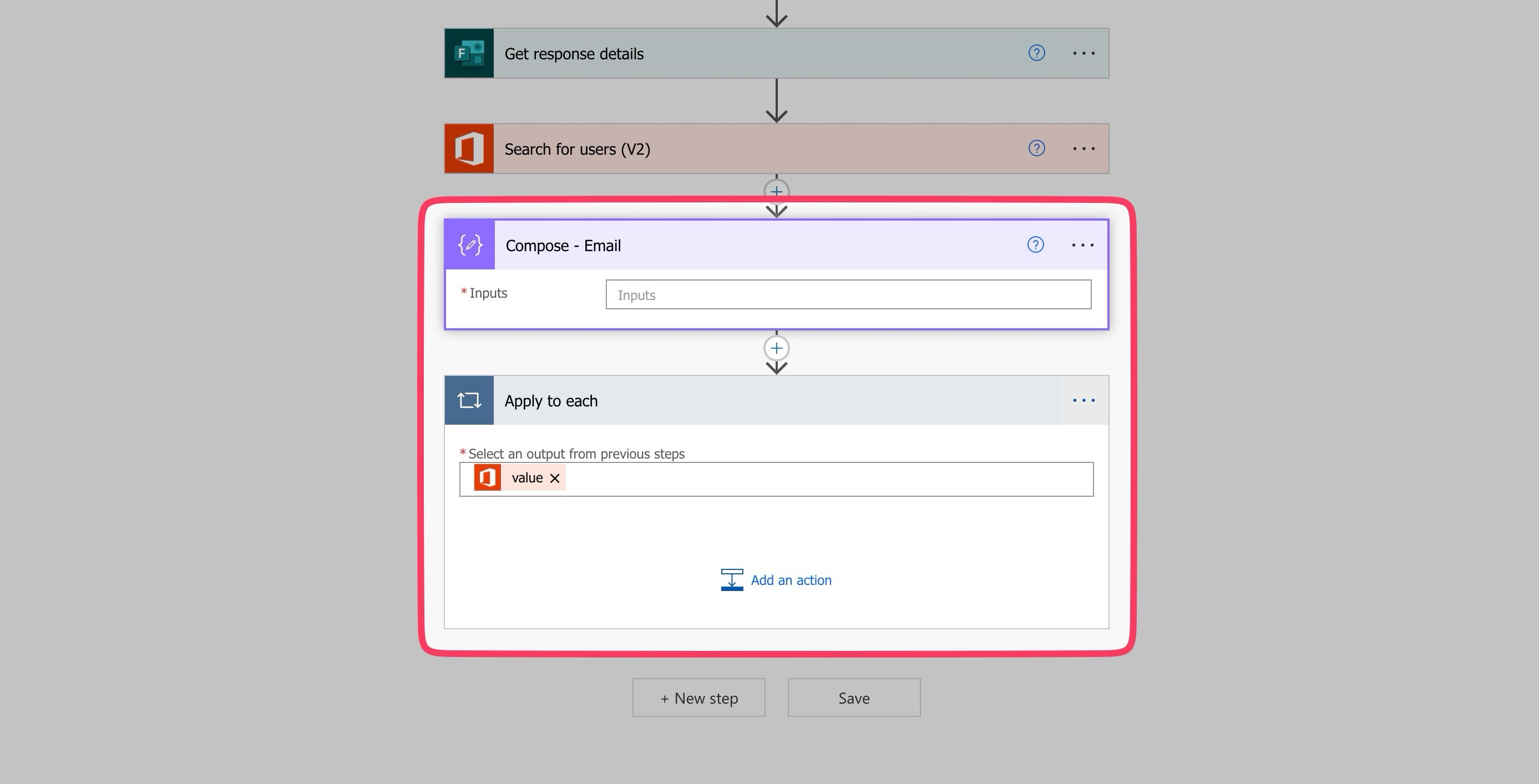
Delete the Apply to Each action.
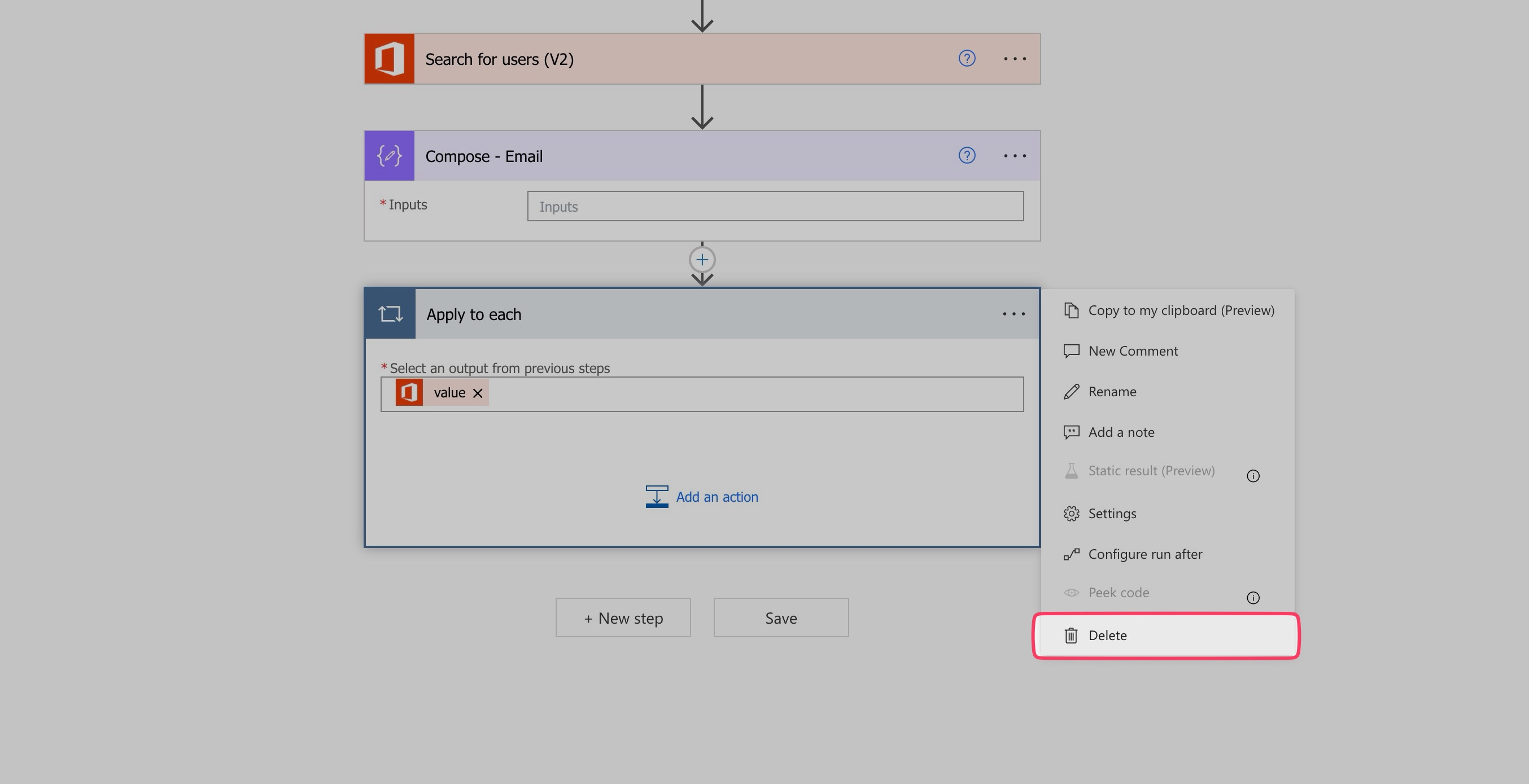
Build the Expression
In this section, you’ll learn how to build an expression that returns the user’s email address from the array output of the Search for Users (V2) action. This step avoids using Apply to Each and helps you work directly with a single value.
Insert an Expression in the Compose action.
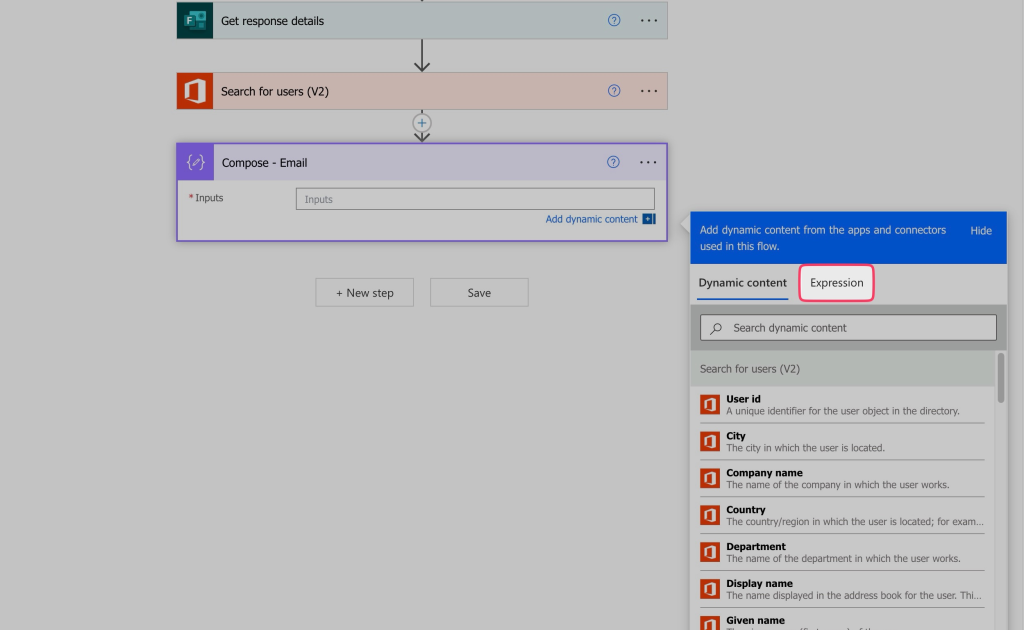
Paste the content from your clipboard.
Insert your cursor just after the question mark.
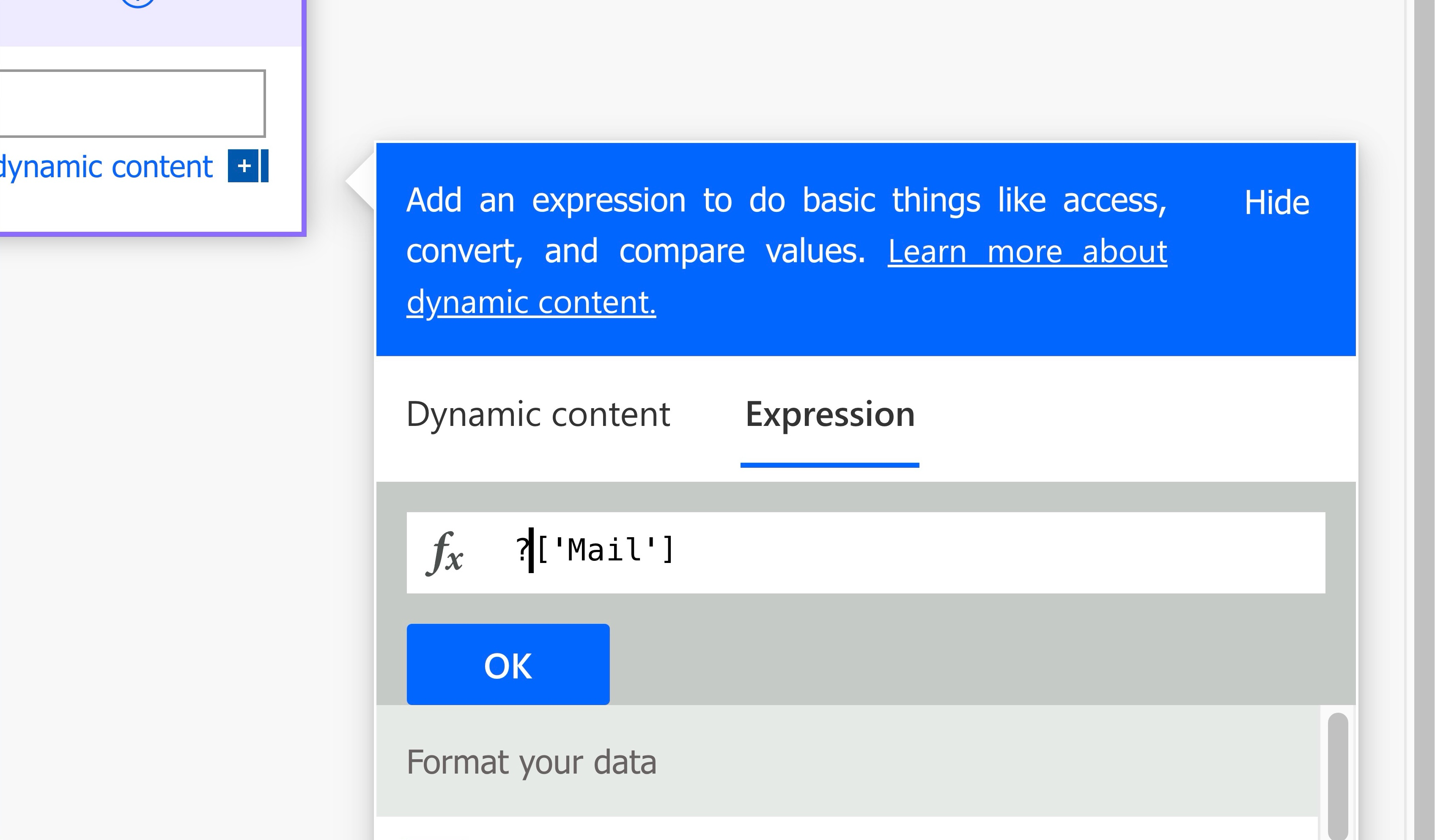
Since we want to return the first item of the array, we’ll need to specify the index. In this case it’s 0.
Insert a zero between square brackets.
Click on the Dynamic Content tab.
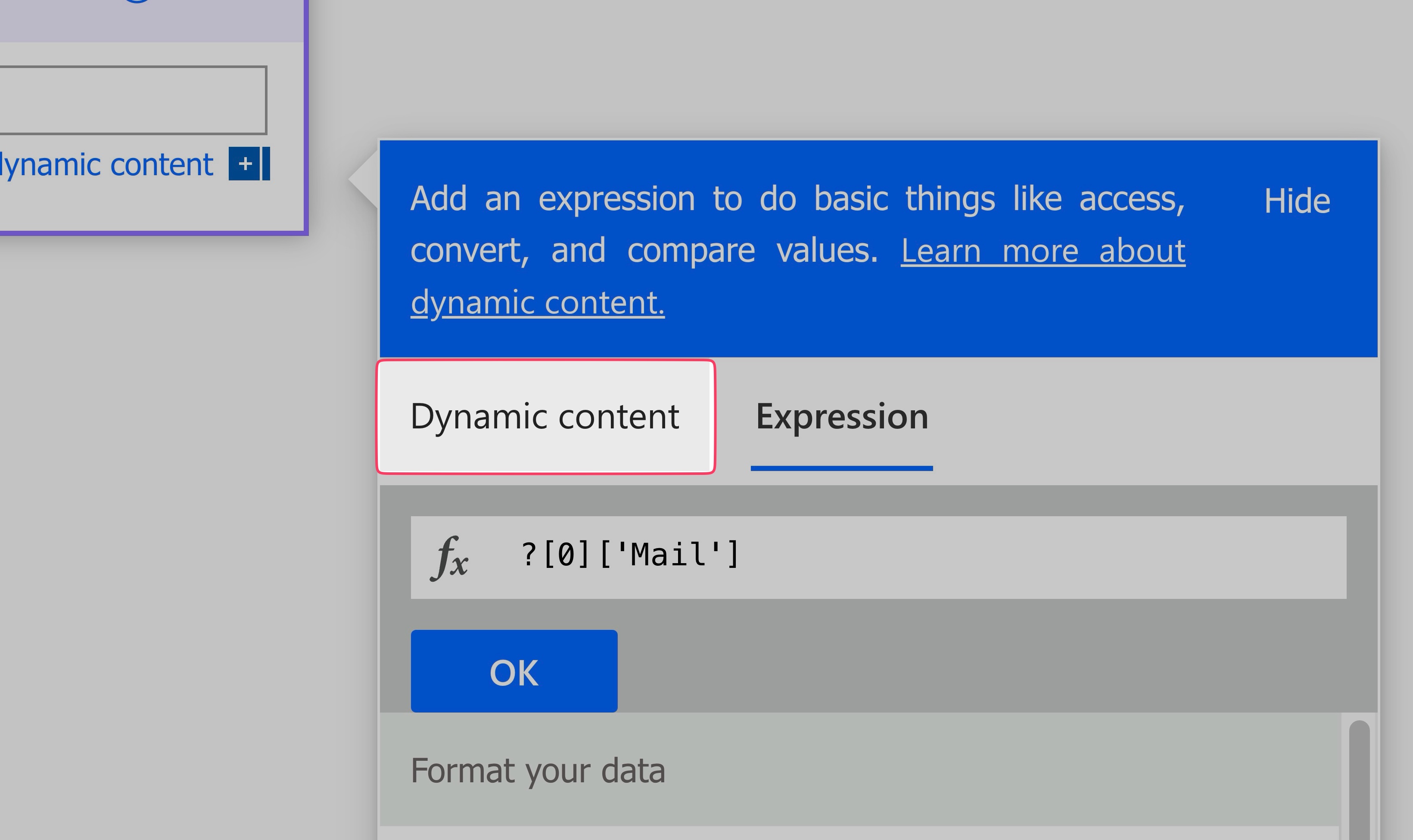
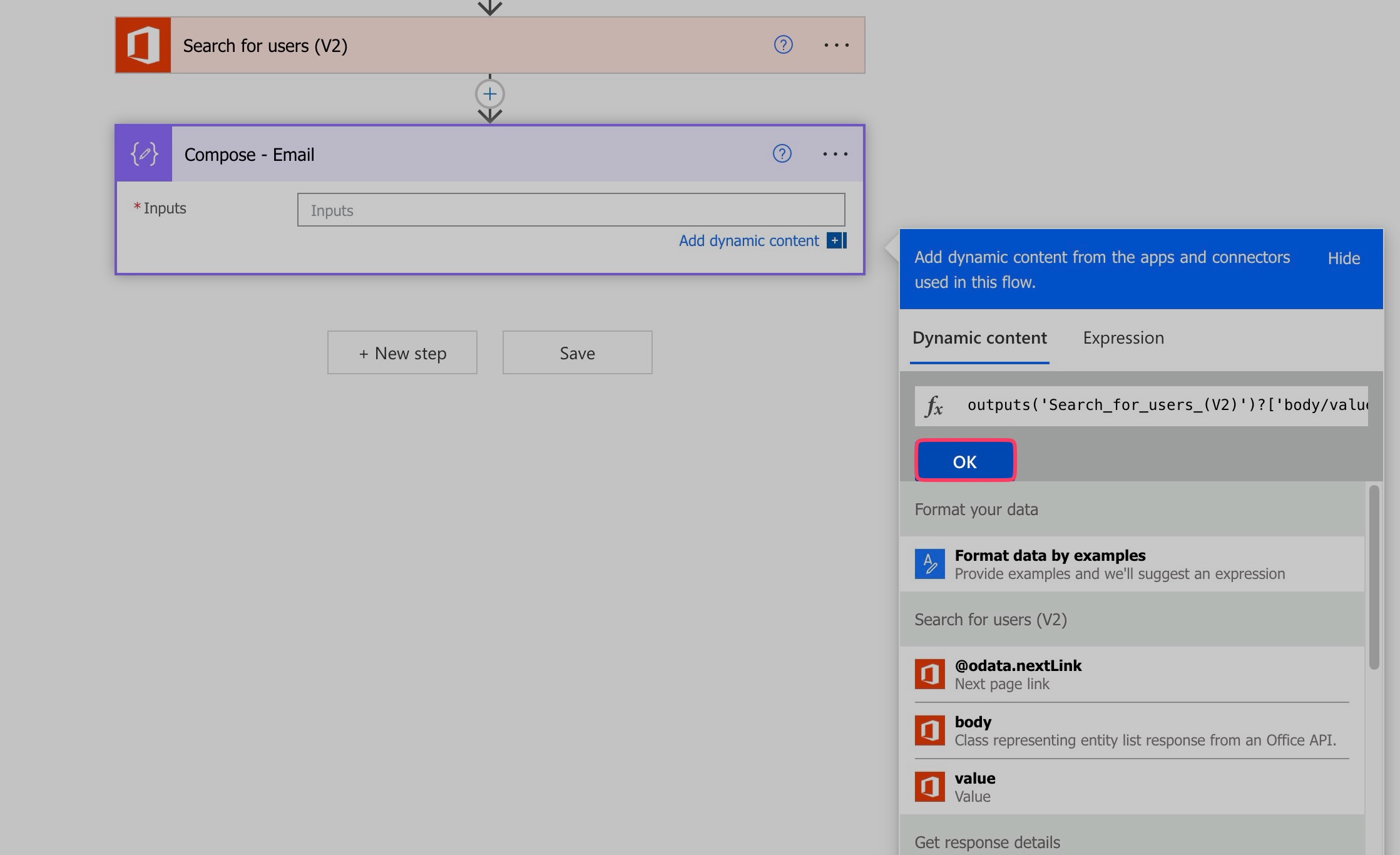
Insert the value dynamic content at the start of the expression.
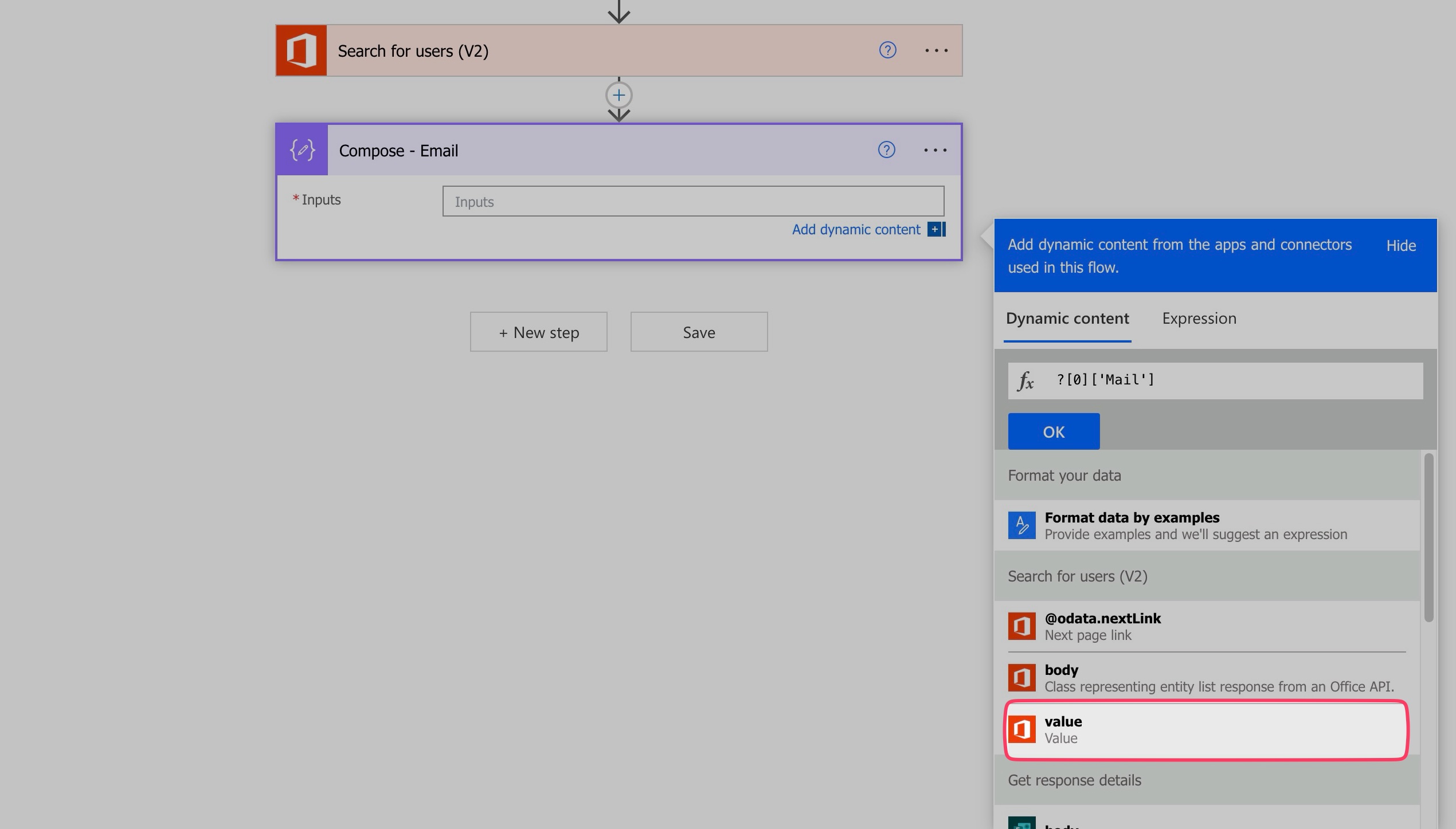
Press OK.
Run a test.
Review the output of the Compose action.
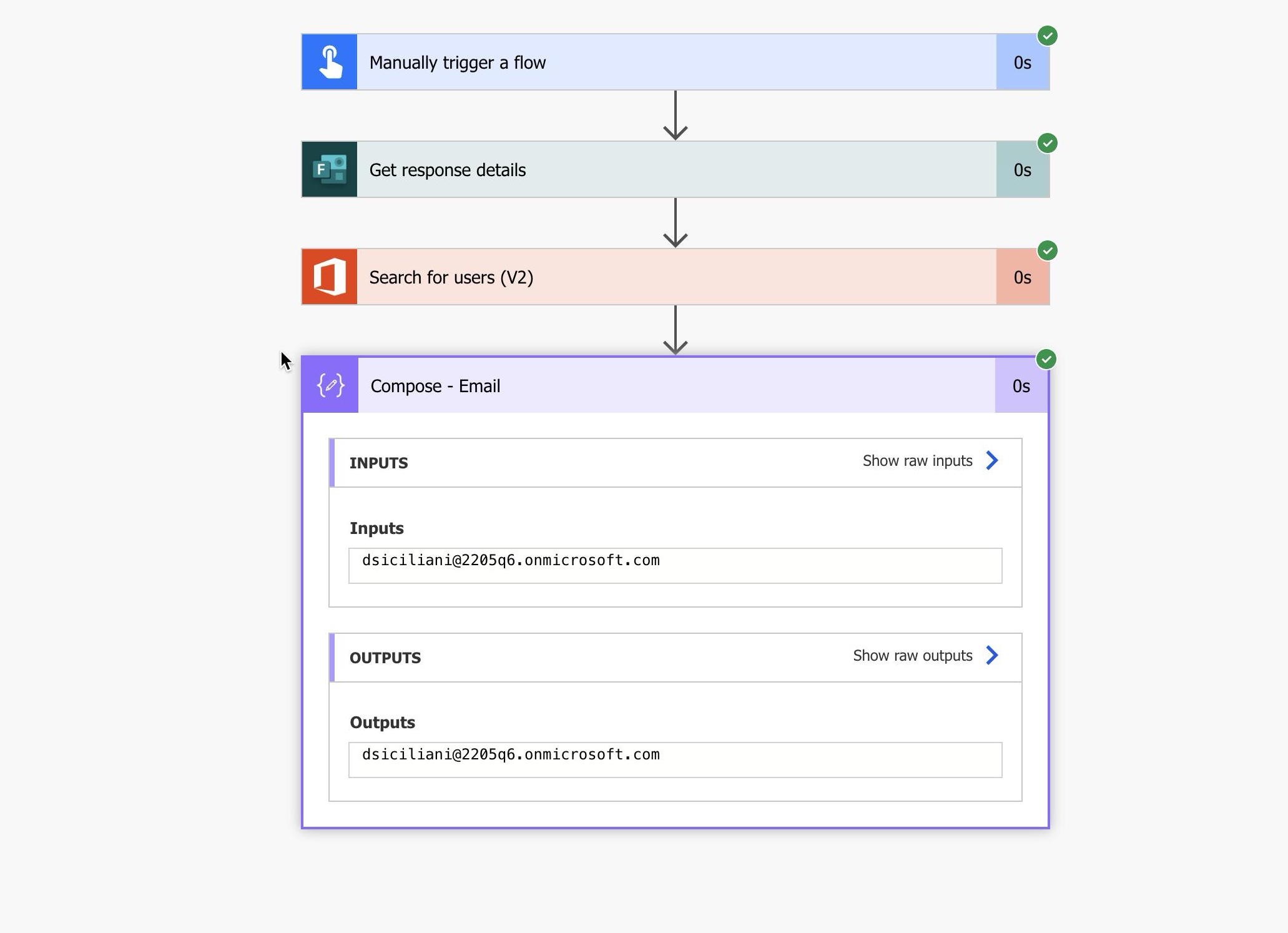
Use the output of the Compose action in subsequent actions.
Next Steps
Now that you’ve extracted the email address from the Search for Users (V2) action, here are a few ways you can use it in your flow:
- Send an email to the selected user
- Update a SharePoint list or Excel table with the user’s email address
- Assign a task or approval based on the selected user
- Store the email in a variable for later steps
Adjust the flow to suit your needs.