
Question/Challenge
A question was posted on r/MicrosoftFlow about extracting values from a nested JSON array. The community member needed to extract just the “Name” values from a nested JSON array returned by an API, and output them as a single string like Tag 1, Tag 2 — without looping through each value individually.
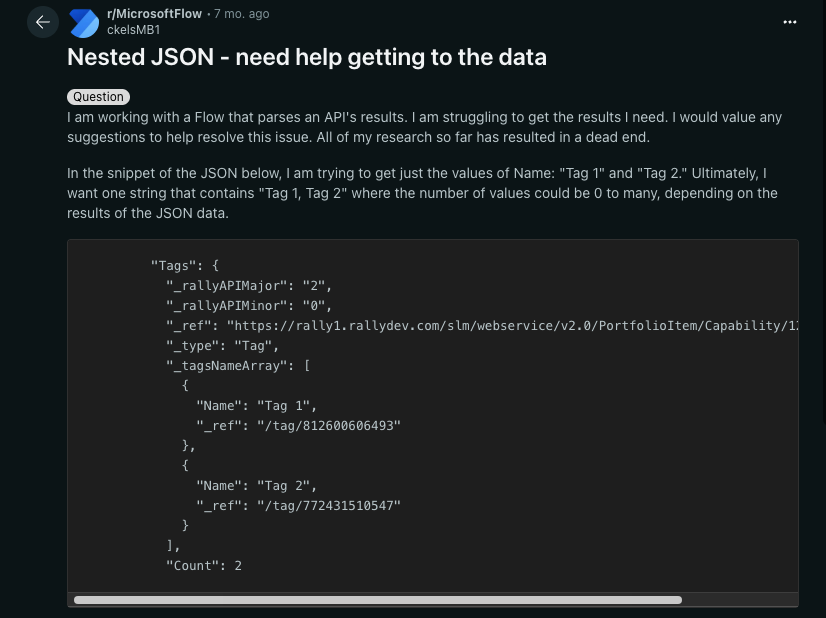
View the full question and discussion here
My Approach
The Parse JSON action in Power Automate makes it easy to work with JSON. Once the schema is generated, each field is made available as dynamic content you can use in your flow.
For this scenario, the goal was to take the _tagsNameArray and return only the "Name" values as a single string. The most efficient way to do this is with a three-step pattern:
- Use Parse JSON to generate a schema and expose the array
- Add a Select action in text mode with the expression
item()?['Name']to pull just theNamefield - Use a Join action to combine the results into a comma-separated string
This pattern works with any JSON array in Power Automate where you need to extract one field and convert it into a single string without needing an Apply to Each loop
Parse the JSON
In this section, you’ll learn how to use the Parse JSON action to generate a schema from sample data. This makes each field available as dynamic content you can use later in your flow.
Add a Compose Action
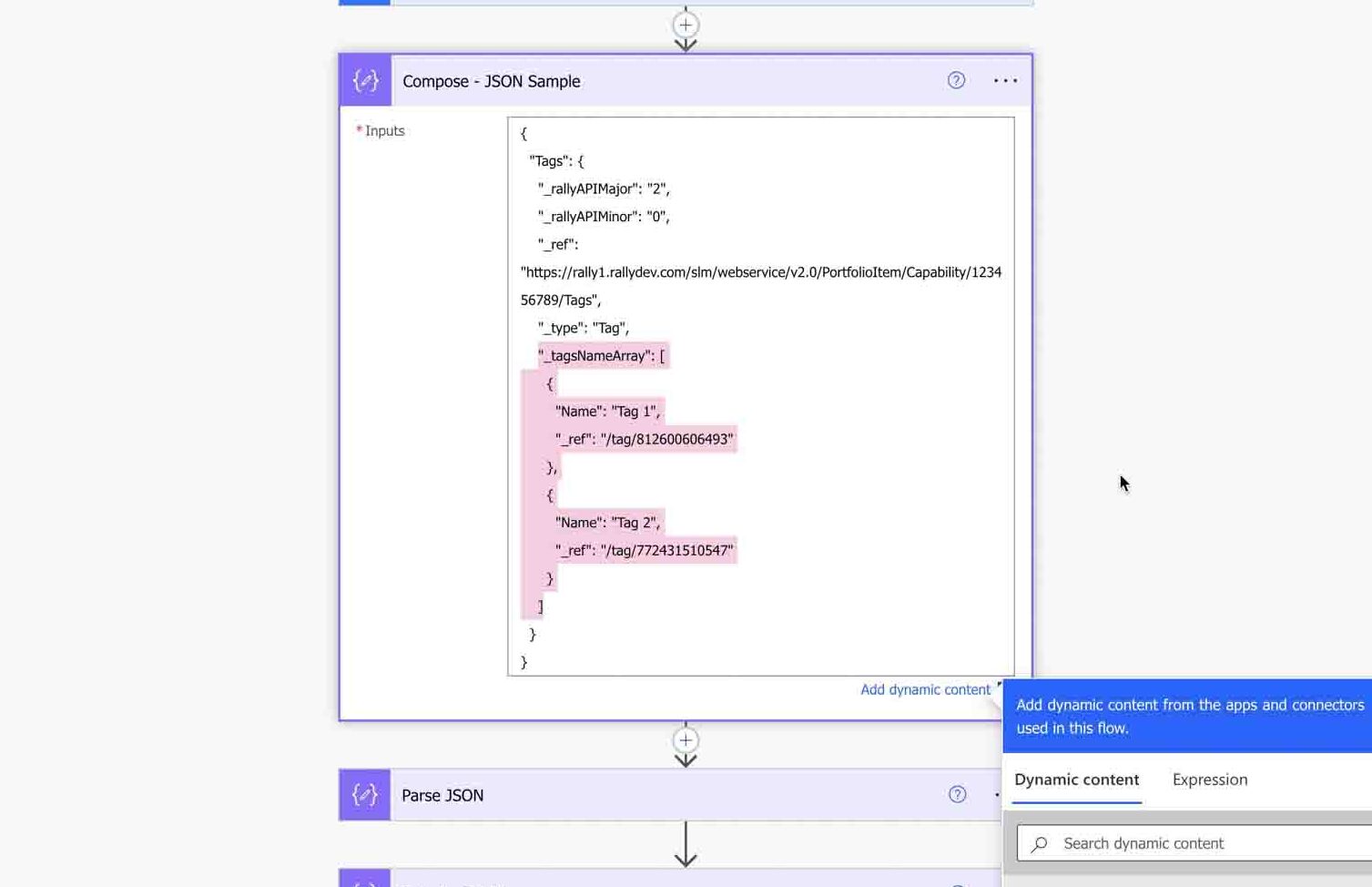
Use a Compose action to hold a sample JSON payload. This can come from an API, connector, or test data you provide. In this tutorial, we’ll use a sample, but in your own flow, use the JSON that matches your scenario.
We’ll be using the Compose output later in the Parse JSON action.
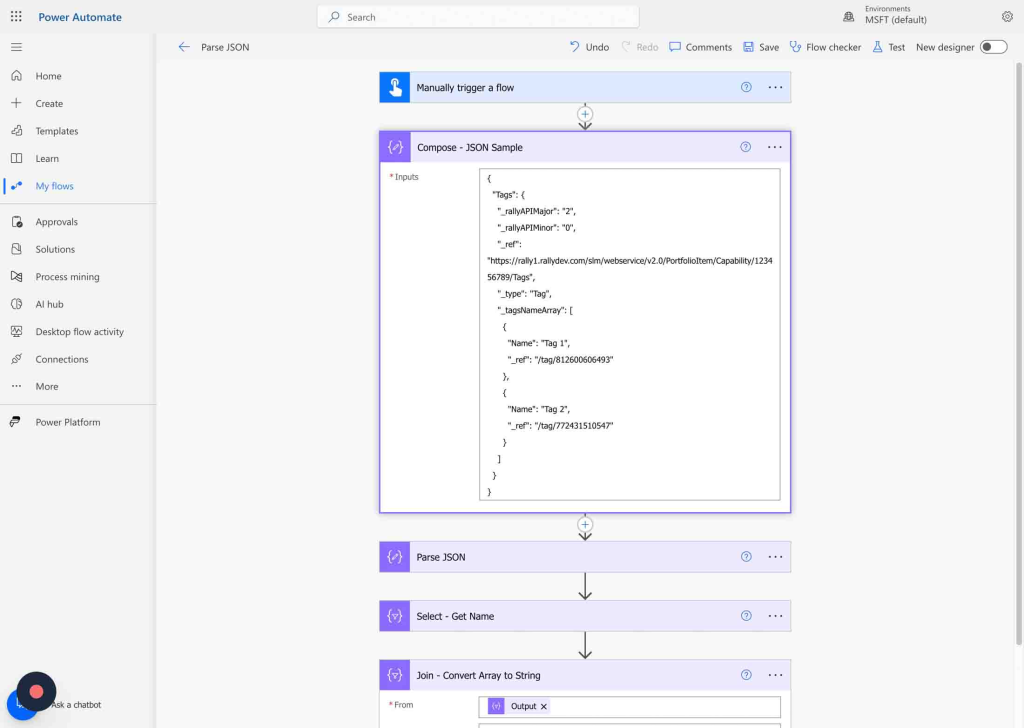
Copy the JSON
Copy the entire JSON sample to your clipboard. This will be used to generate a schema in the Parse JSON action.
Add a Parse JSON Action
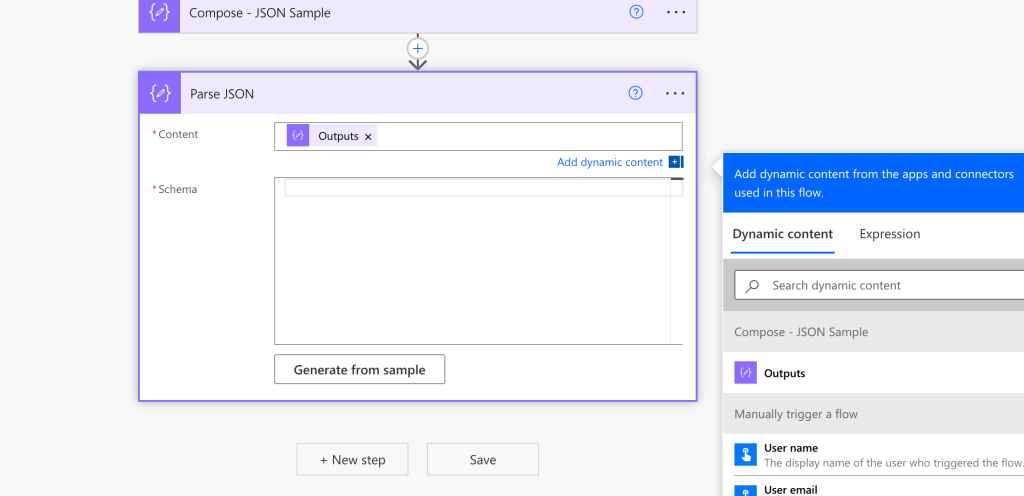
Add a Parse JSON action to your flow.
In the Content field, select the output from your Compose step (or select the API response if you’re working with live data). This tells Power Automate which JSON should be parsed.
Generate the Schema
In the action, select Generate from sample.
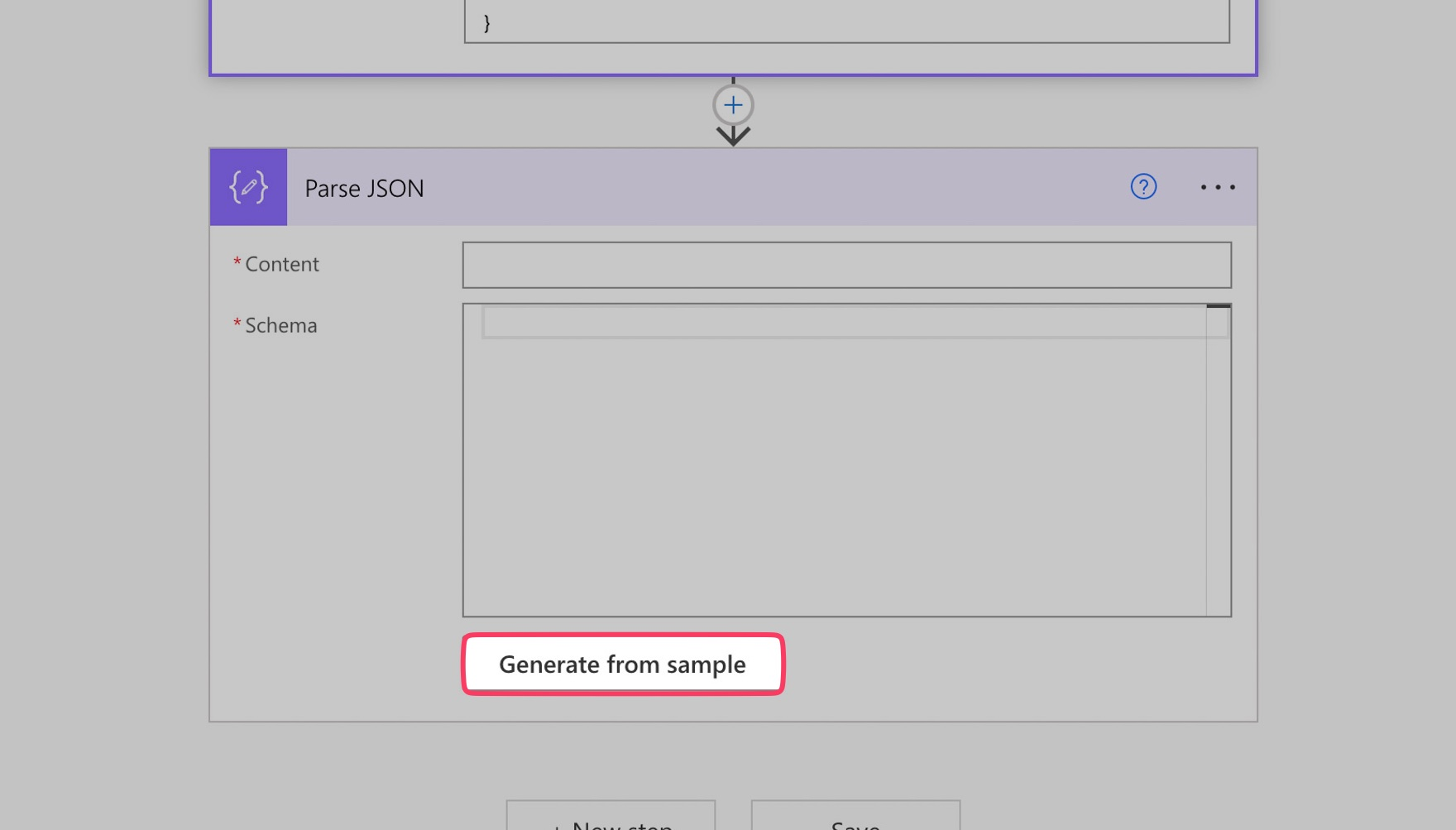
Paste the JSON
Paste the JSON you copied into the dialog box. Power Automate will automatically generate a schema based on the structure of your sample.
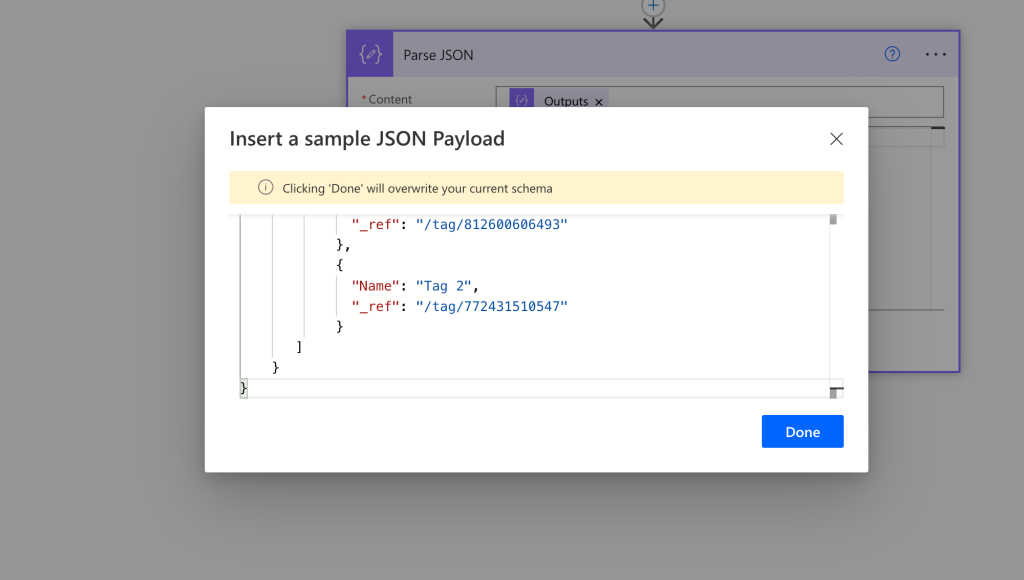
Click Done.
Power Automate will generate a schema for you. You don’t need to edit this manually.
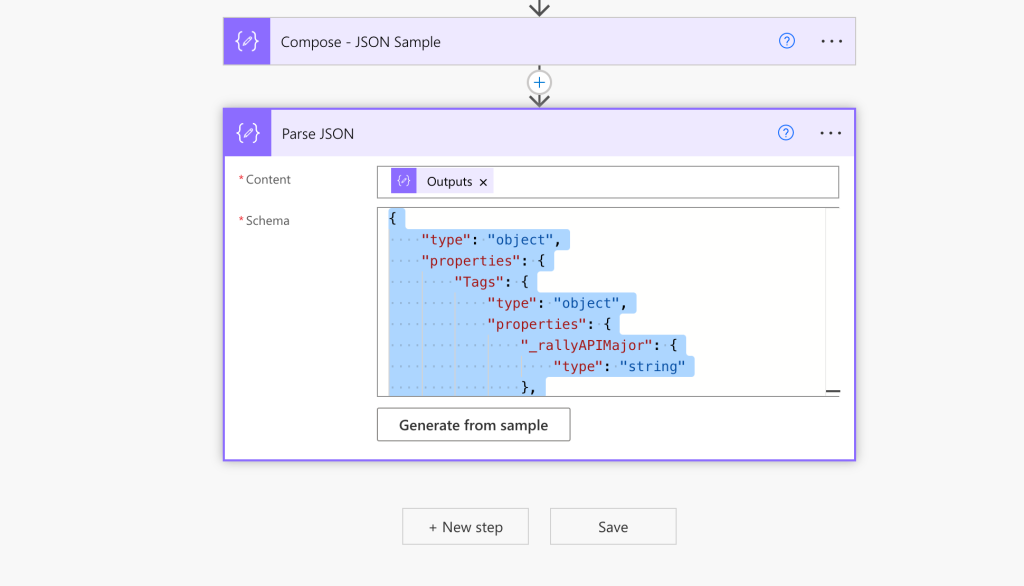
Extract Values from the Array
In this section, you’ll use the Select action to pull out only the field you need from a JSON array. You’ll also learn how to write an expression so the output contains just the values you want.
Select the Array
Insert a Select action. In the From field, choose the array you want to work with.
In this tutorial, we’ll use the _tagsNameArray output from the Parse JSON step.
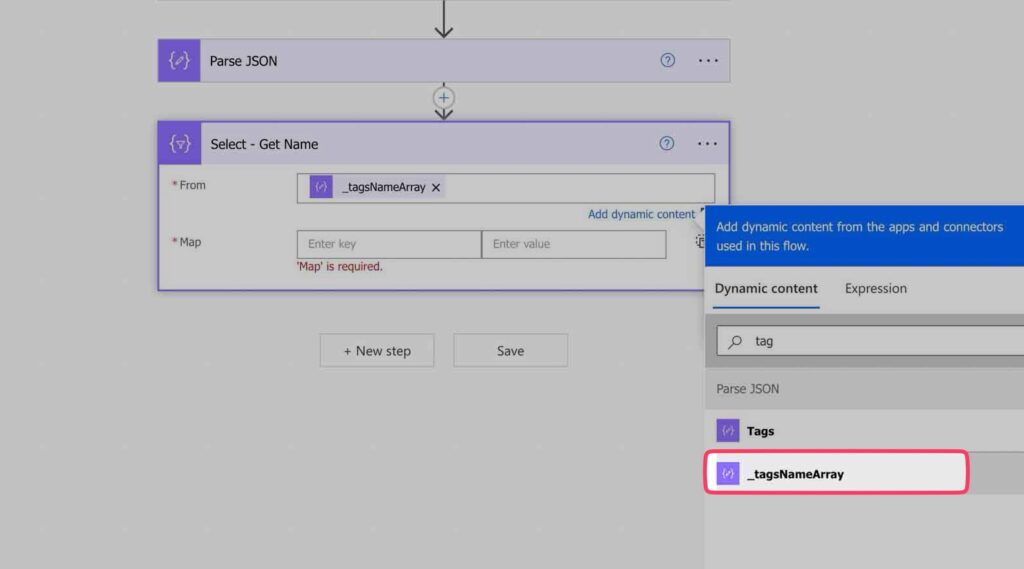
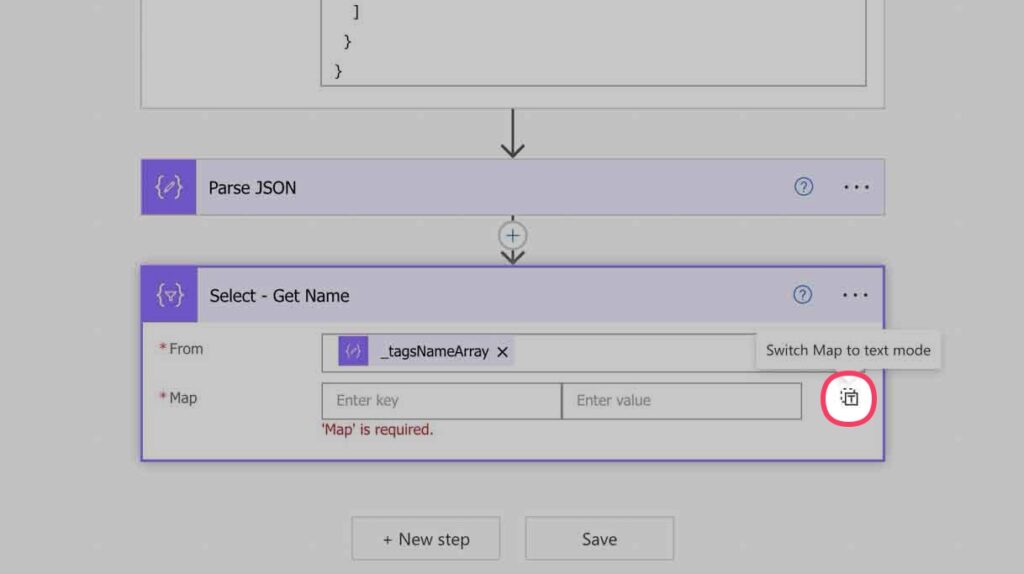
Switch to Text Mode
By default, the Select action opens in Map mode, which is designed for mapping key–value pairs. Since we only need one field from each item, click the icon to switch from Map to Text.
Write the expression
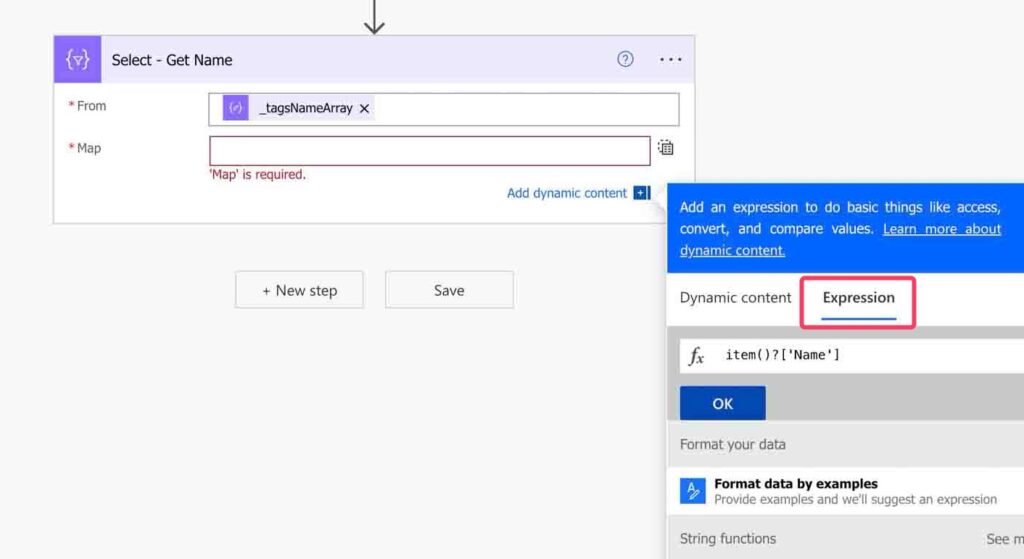
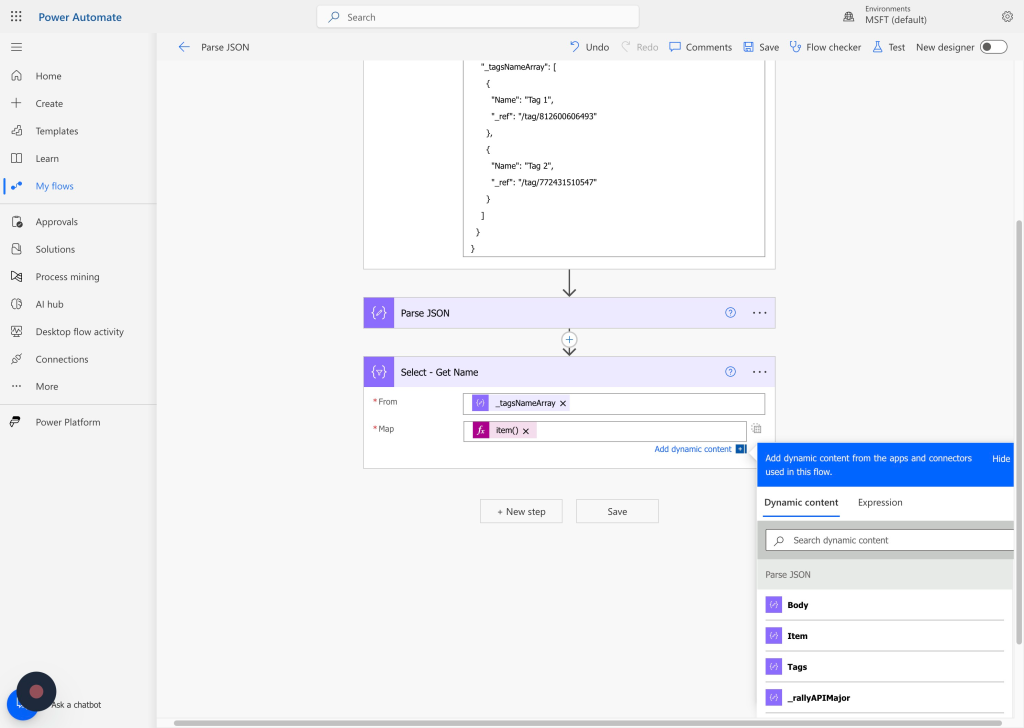
Open the Expression tab and enter:
item()?['Name']This tells Power Automate to return only the Name value from each item in the array.
Test and confirm
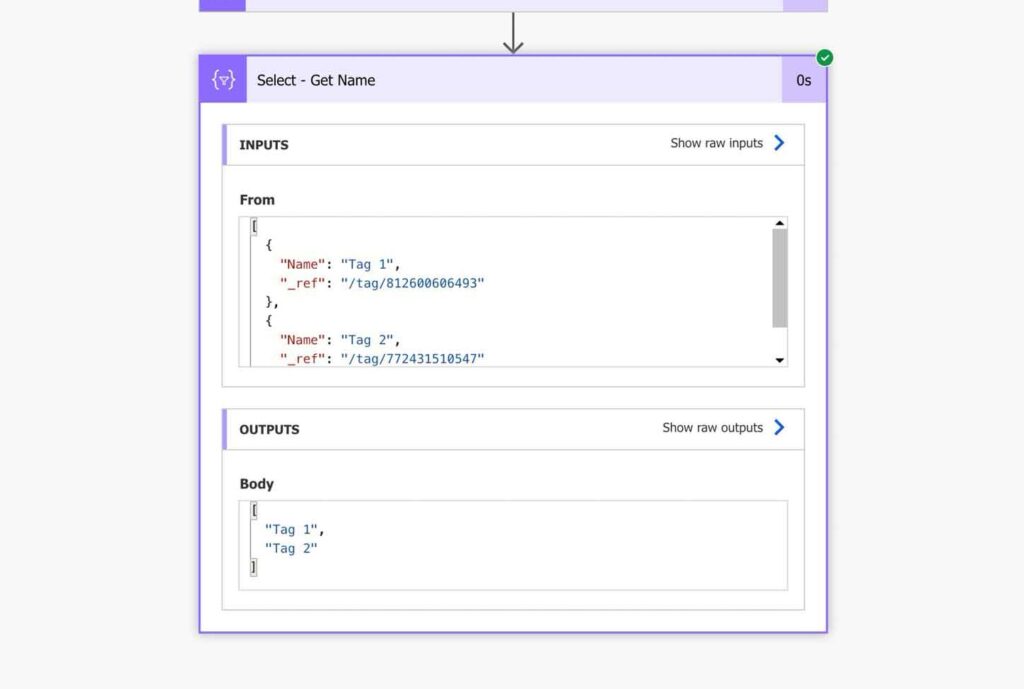
Run the flow and check the Select output. You should see an array of values.
Convert the Array to a String
In this section, you’ll learn how to use the Join action to turn an array into a single string. This creates a comma-separated string of values, such as Value 1, Value 2, that you can reuse in emails, SharePoint, or other actions.
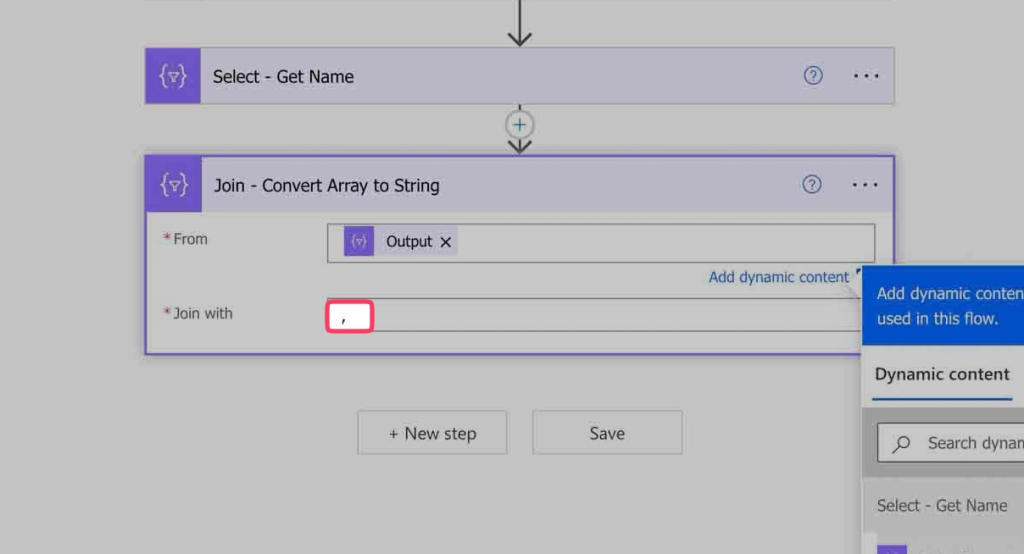
Add a Join Action
Insert a Join action.
In the From field, select the output from your Select step.

Choose a Separator
In the Join with field, type a comma followed by a space (, ).
Test and Confirm
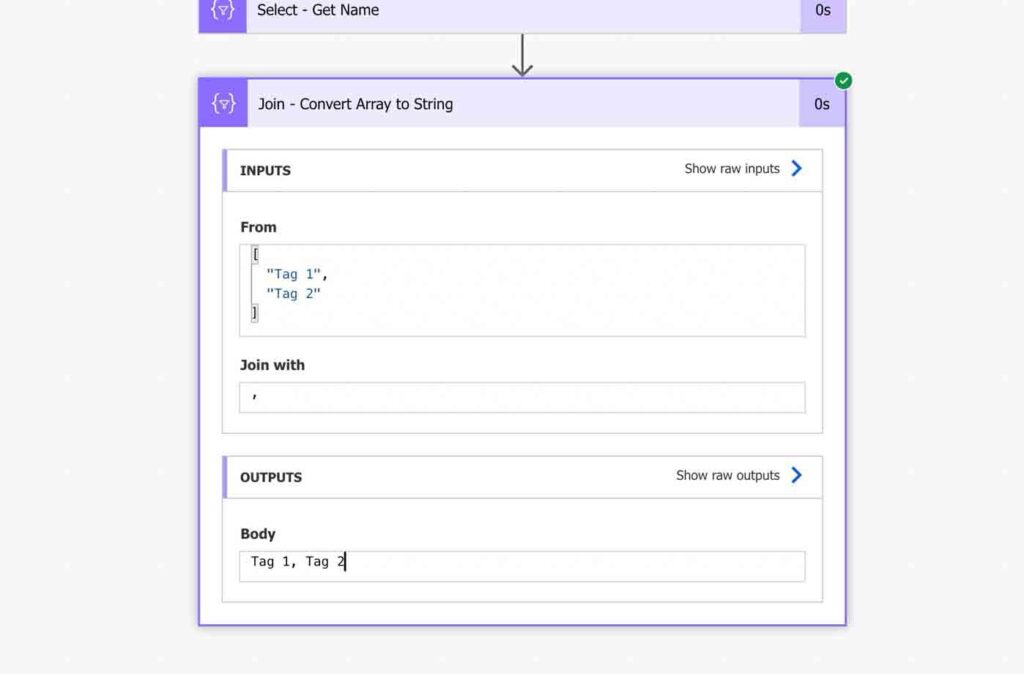
Run the flow and check the output of the Join action. You should now see one string that contains all the values from the array, separated by your chosen character.
Next Steps
Now that you’ve converted your JSON array into a single string, here are a few ways you can use it in your flow:
- Send an email with the string included in the body.
- Update a SharePoint list or Excel table with the combined values.
- Store the string in a variable for later steps in the flow.
This pattern works any time you need to extract specific values from JSON and make them easier to use in your flow. Adjust the flow to fit your requirements.