
This tutorial covers how to group SharePoint list items by a column value, in this case Status. It walks through the logic of extracting unique values, looping through them and filtering the original list.
What You’ll Learn
- Extract column values from SharePoint list items using the Select action
- Remove duplicates using the union() expression
- Loop through each unique value with Apply to Each
- Filter SharePoint items dynamically using Filter Array
- Structure a flow that groups and processes items based on a shared column value
Get the Values to Group By
In this section, we’ll use the Select action to extract the values from the column we want to group by. This gives us a simplified list of all the selected values.
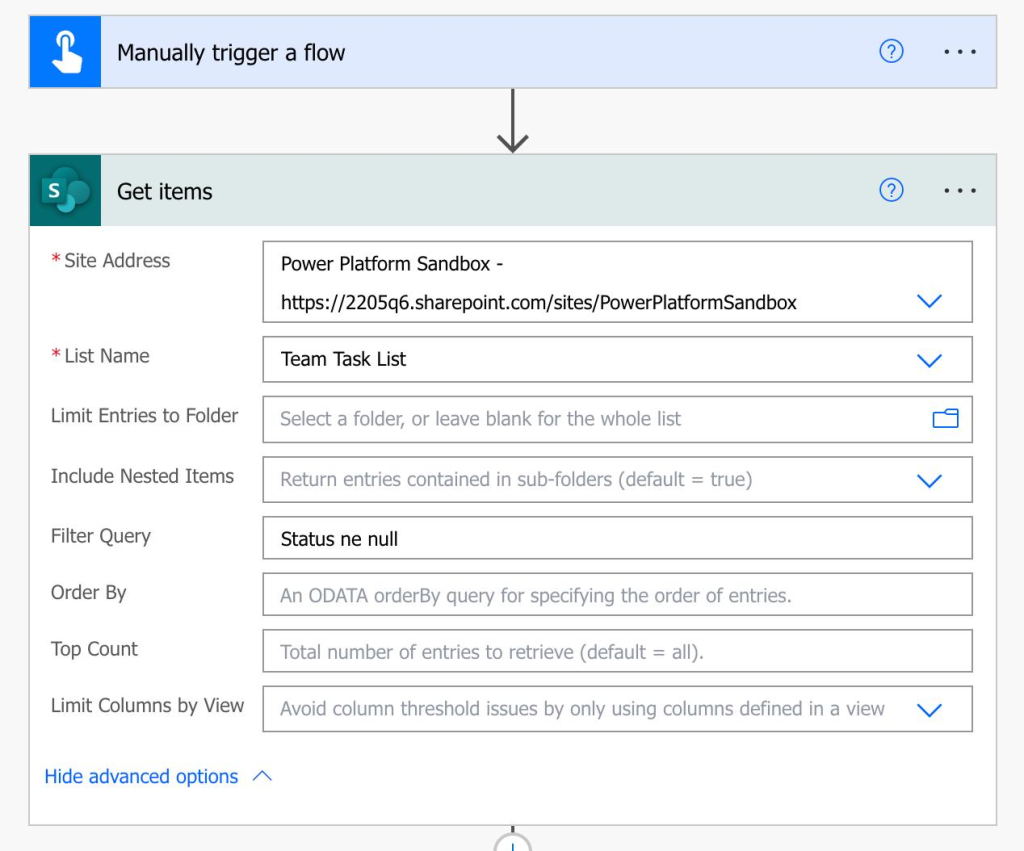
Add a Get Items action to your flow.
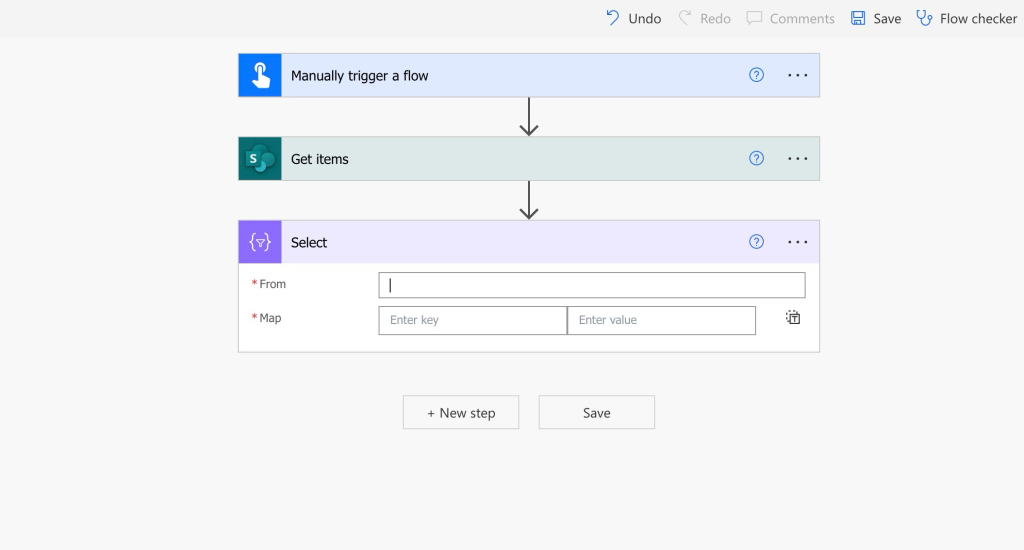
Add a Select action.
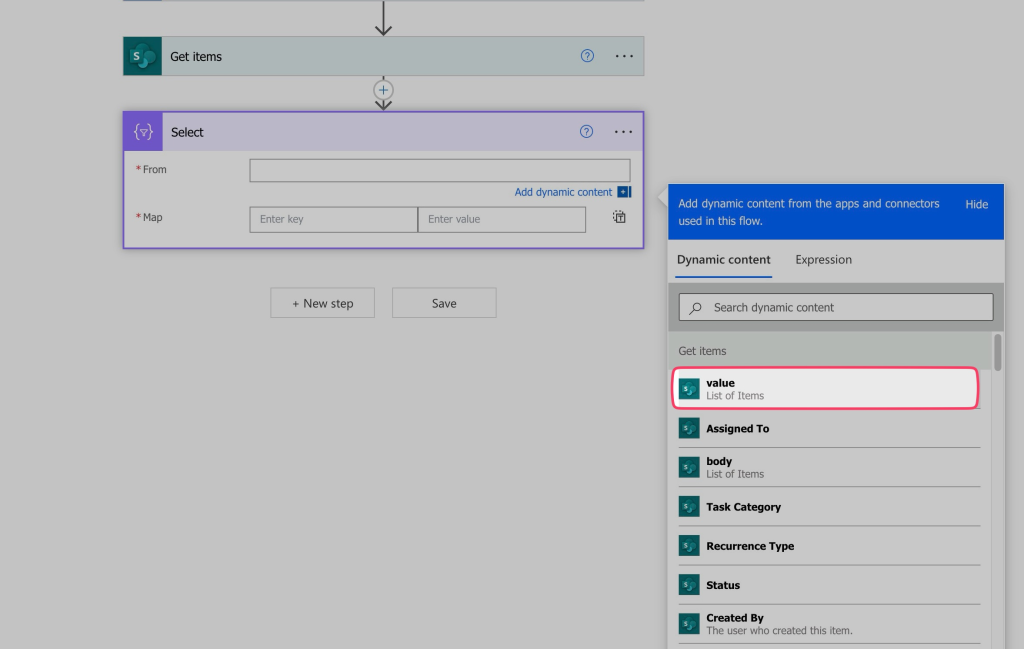
In the From field, insert the value dynamic content from the Get Items action.
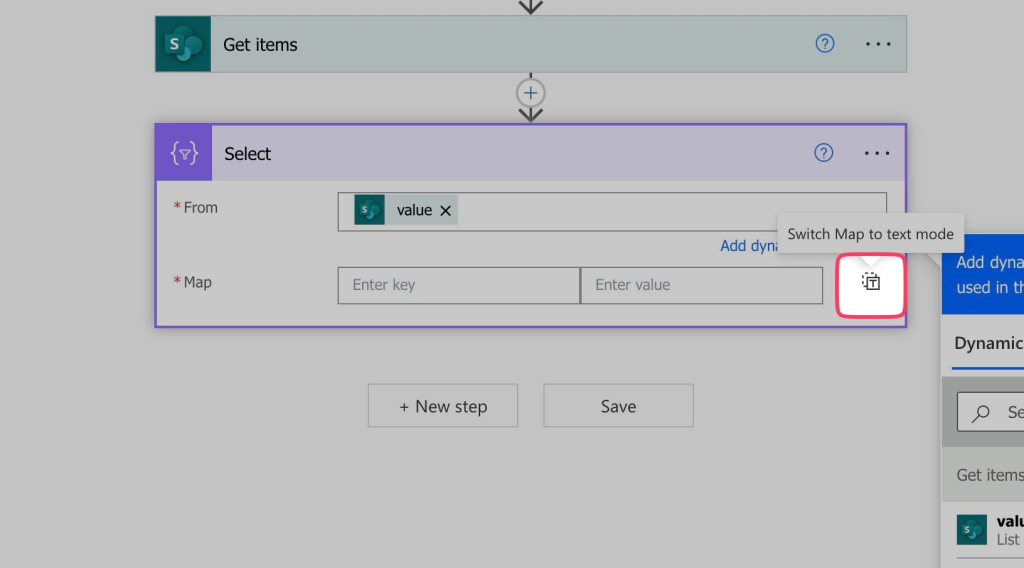
Click on this icon to switch the mode from Map to Text.
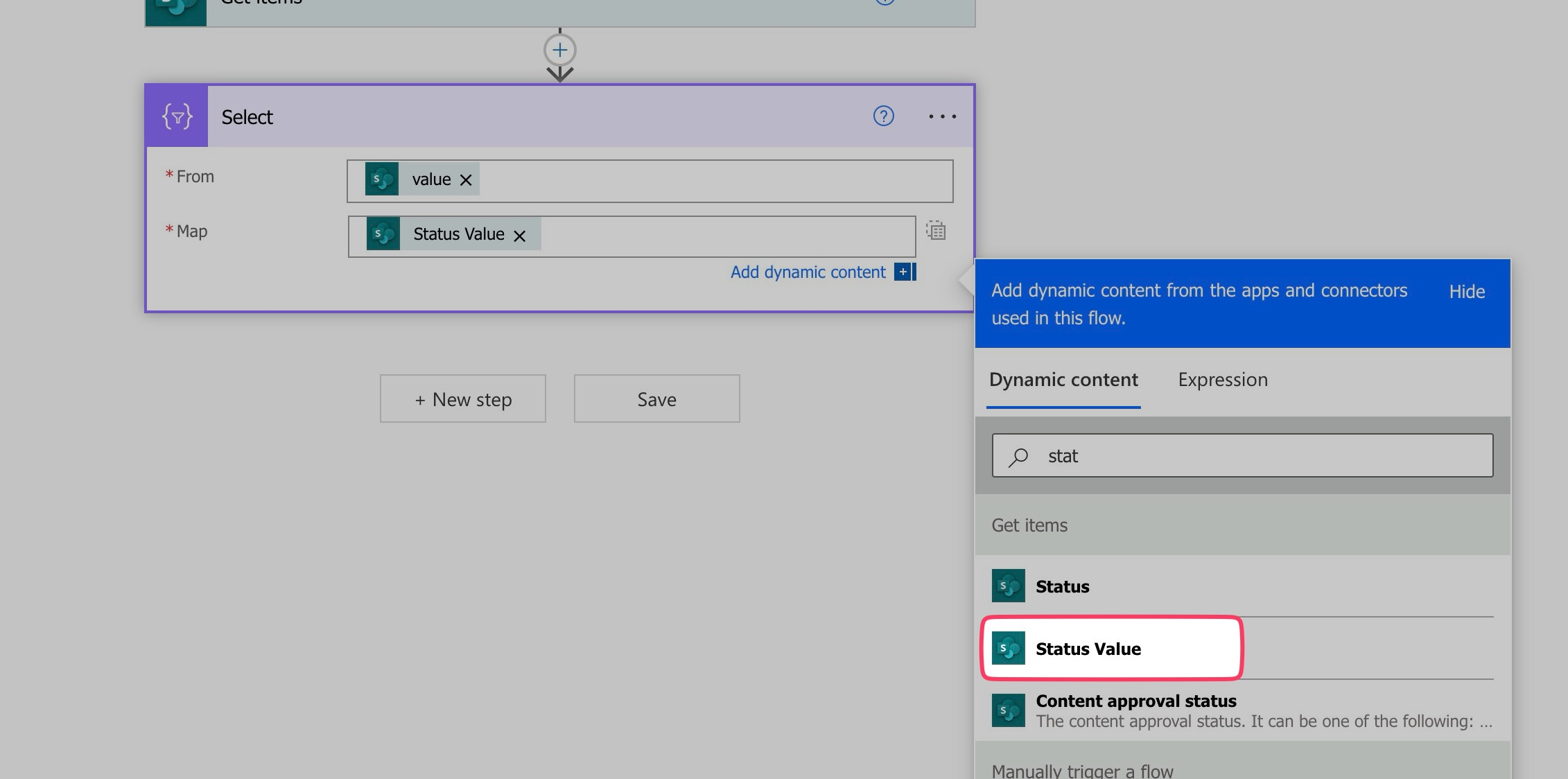
Insert the value dynamic content from your SP column. In my case, it’s the Status column.
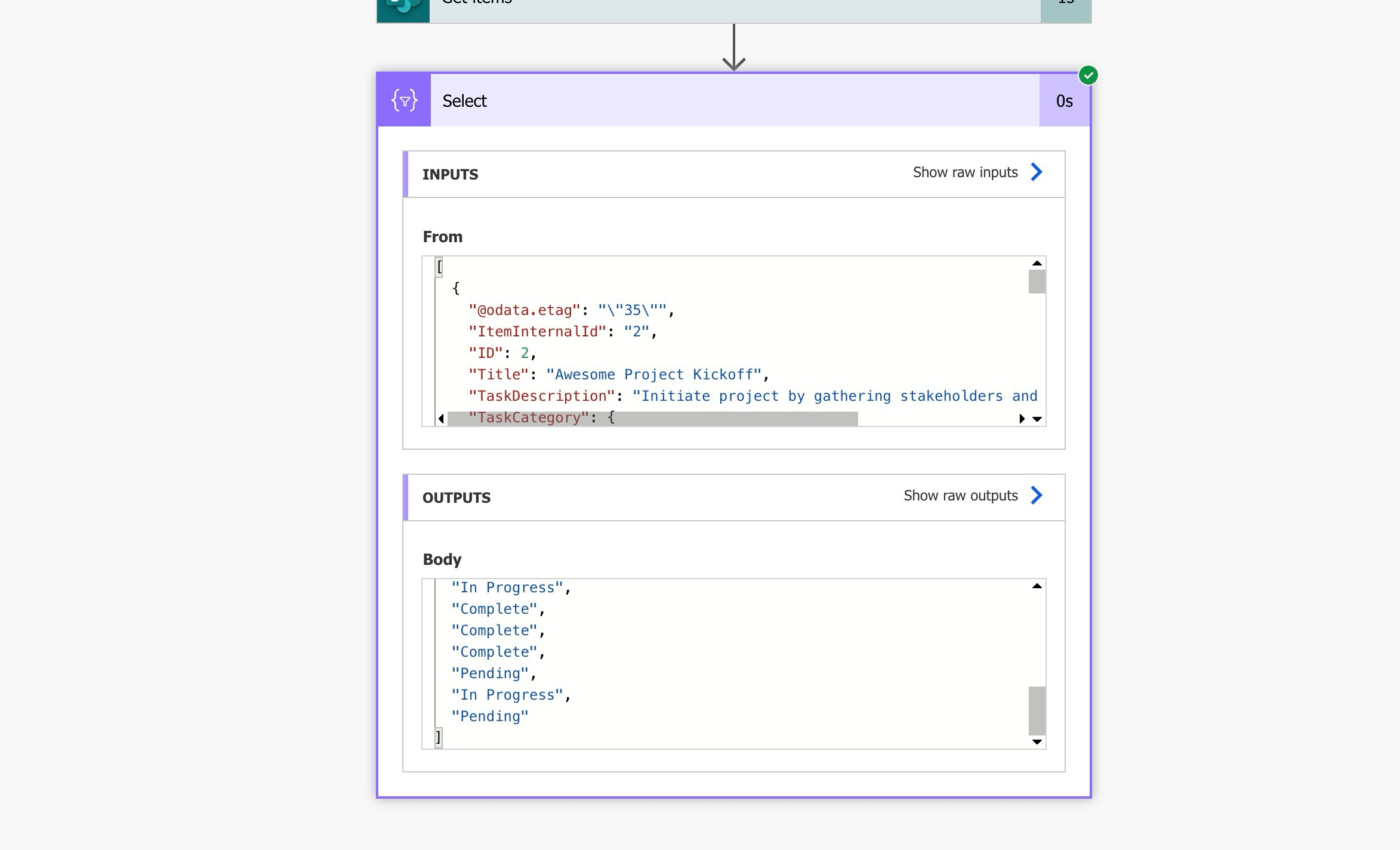
Run a test.
Review the outputs.
The Select action has selected all of the Statuses assigned to my SP List items.
Get a Unique List of Grouping Values
In this section, we’ll use the union() expression to remove duplicates from the list of selected values. This gives us a unique list we can use to loop through each grouping value once.
Add a Compose action.
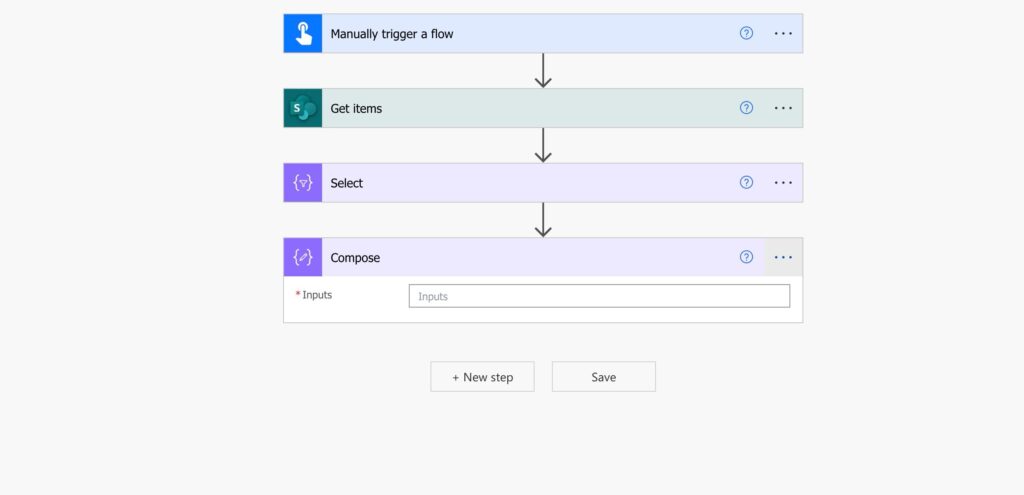
Insert an Expression.
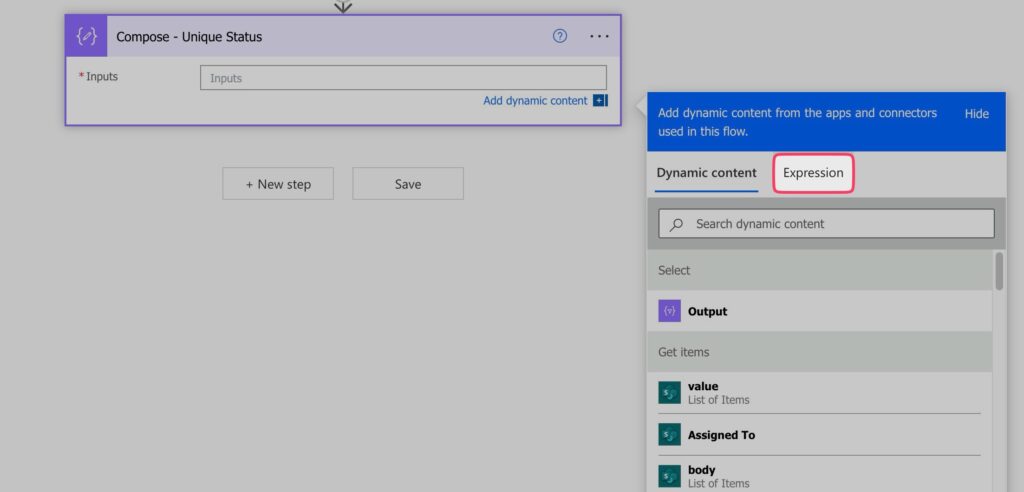
Use the union() function.
Click on the dynamic content tab.
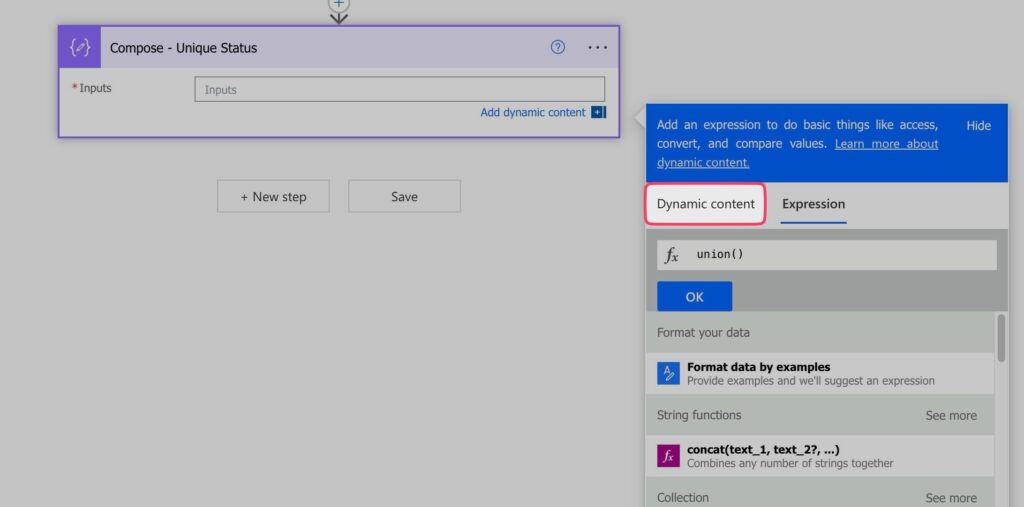
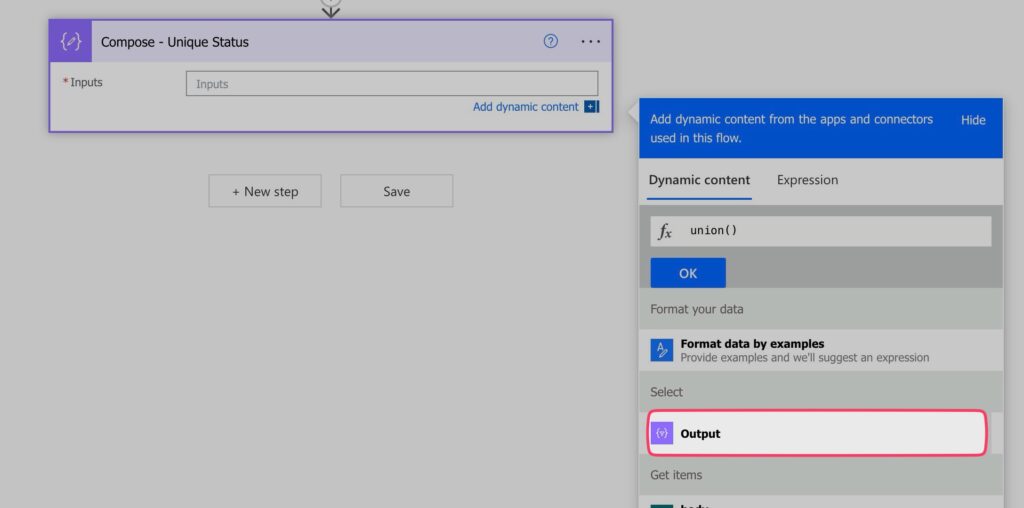
Insert the Output from the Select action (first array).
Enter a comma.
Insert the Output from the Select action again (second array).
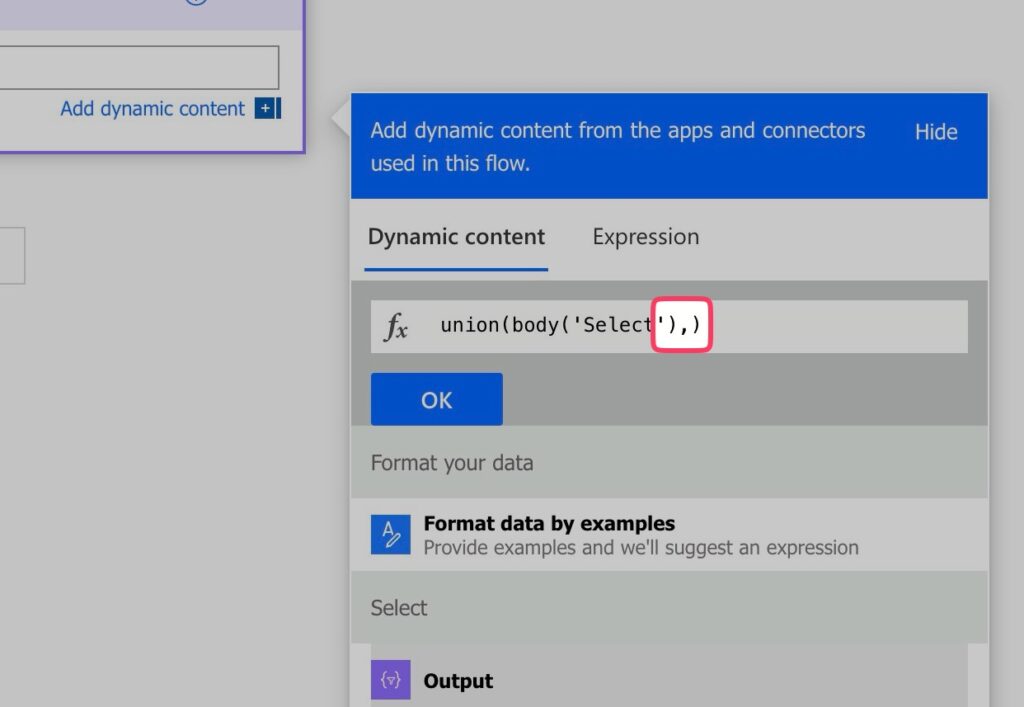
Press Ok.
Run a test.
Review the Outputs of the Compose action. You should see a unique list of values.
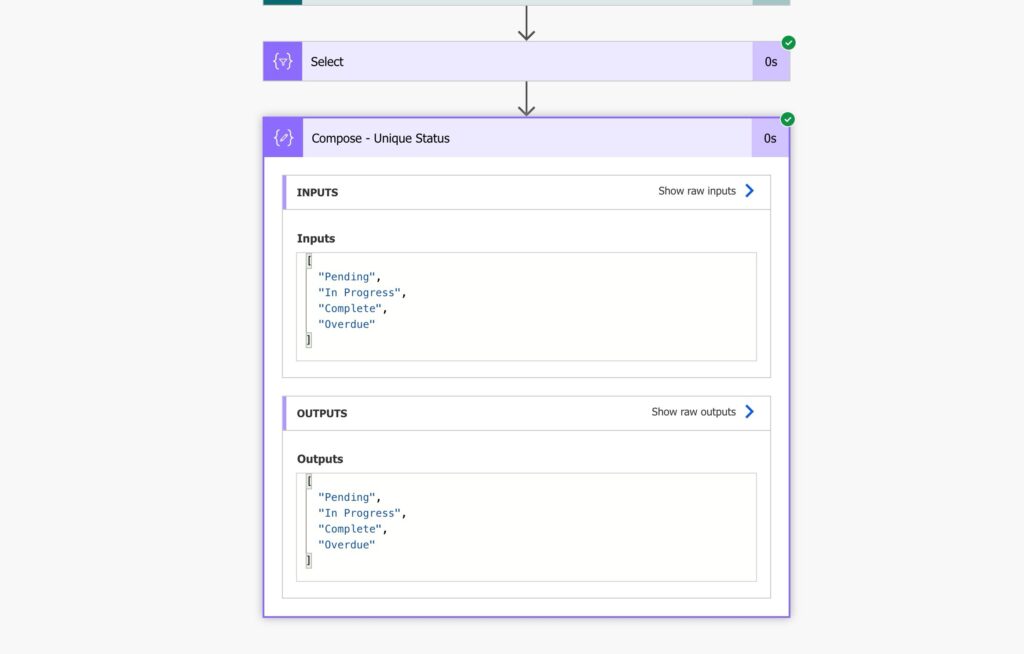
Loop Through Each Grouping Value
In this section, we’ll loop through each unique value and use a Filter Array action to get the items that belong to that group.
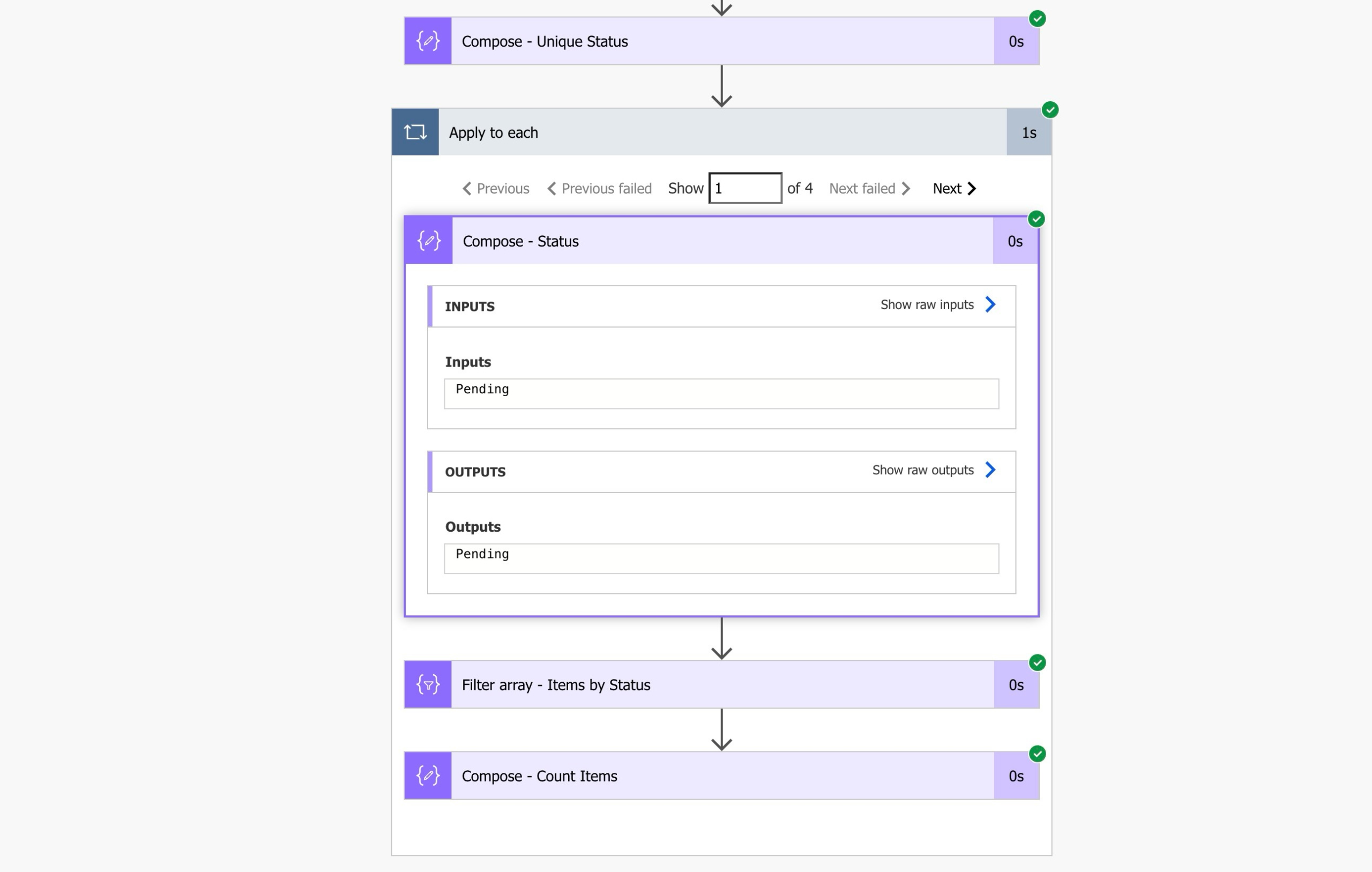
Insert an Apply to Each action to loop through each Status.
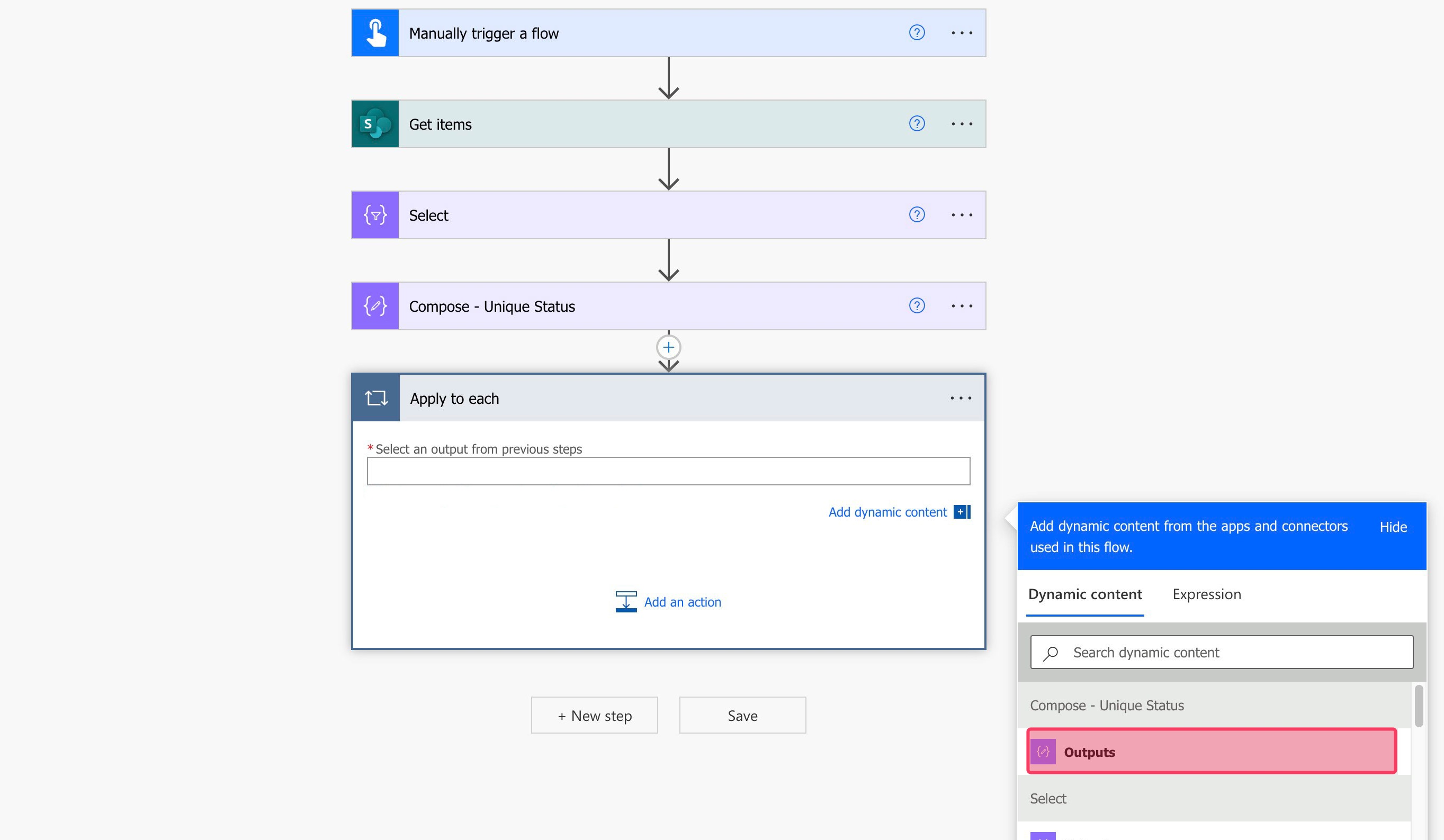
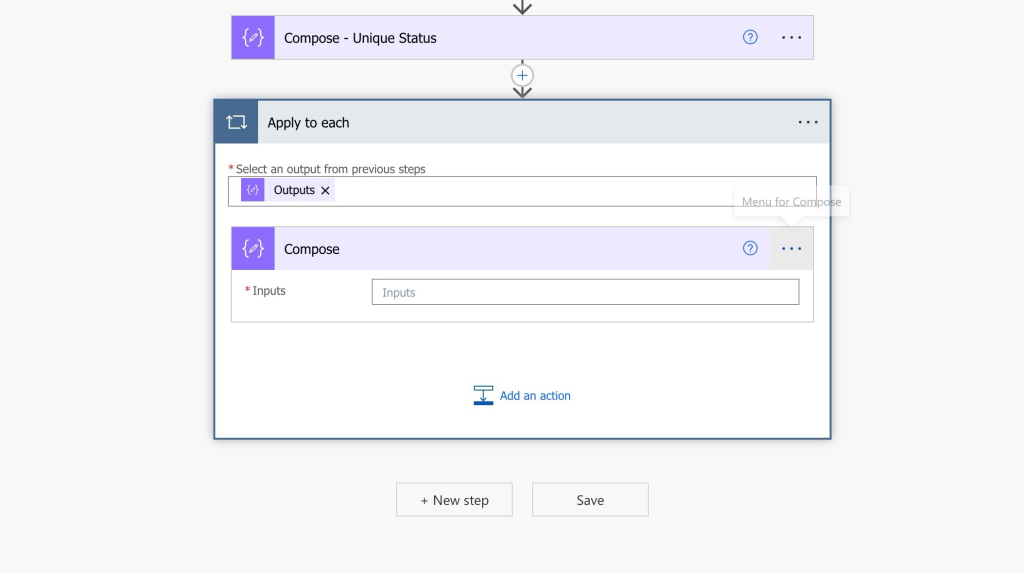
Add a Compose action. This step is optional.
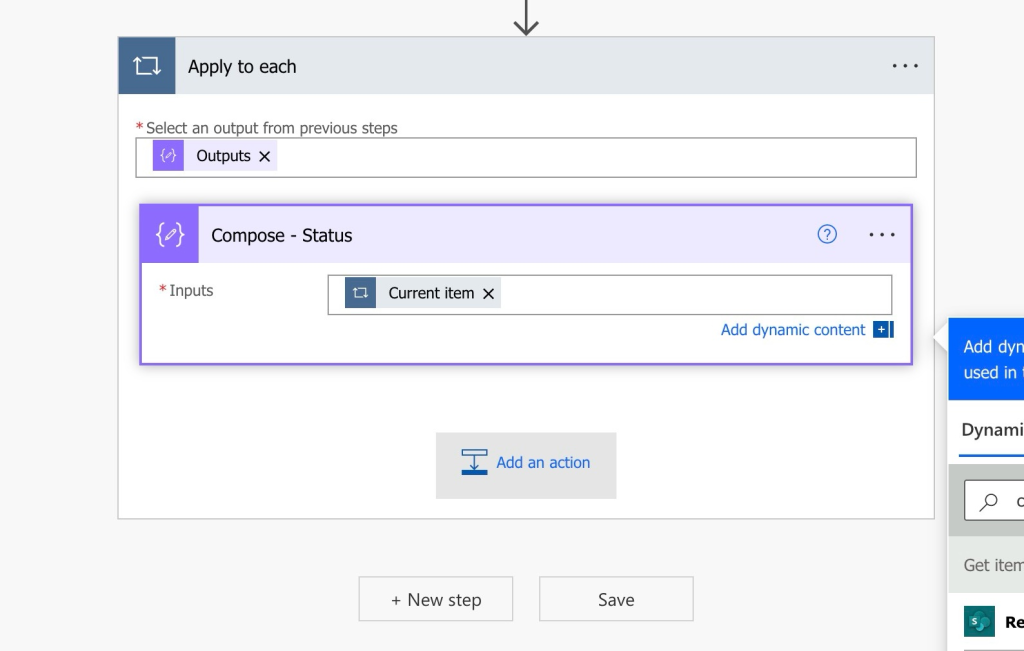
I like to use Compose actions to output the value that I’m currently looping through as it can help with troubleshooting.
Insert the Current Item dynamic content.
Insert a Filter Array action. We’ll use the Filter Array action to filter out the items from the Get Items action by the current Status being looped through.
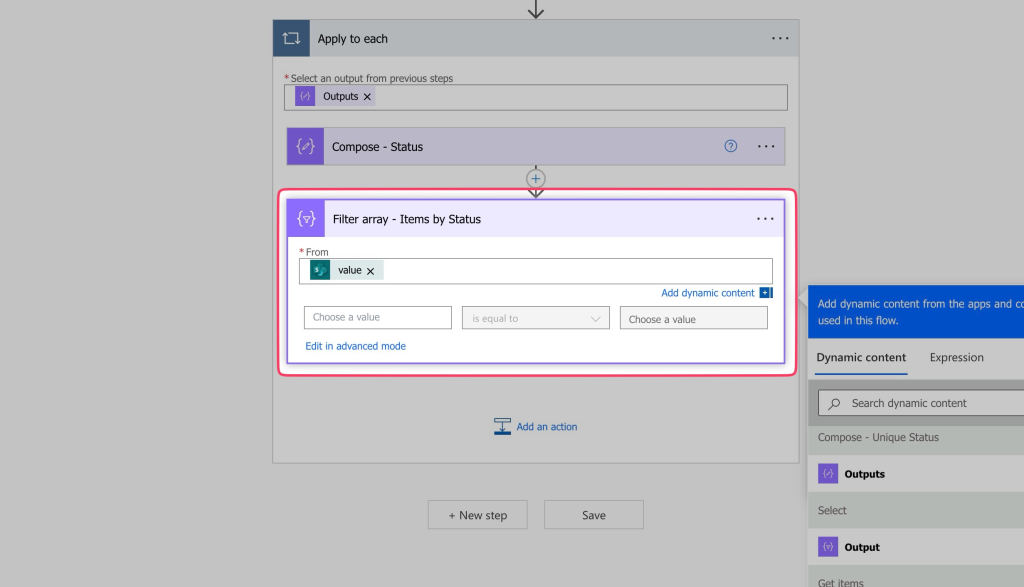
In the first value field, insert the value dynamic content from your SP column. In my case, it’s the Status column.
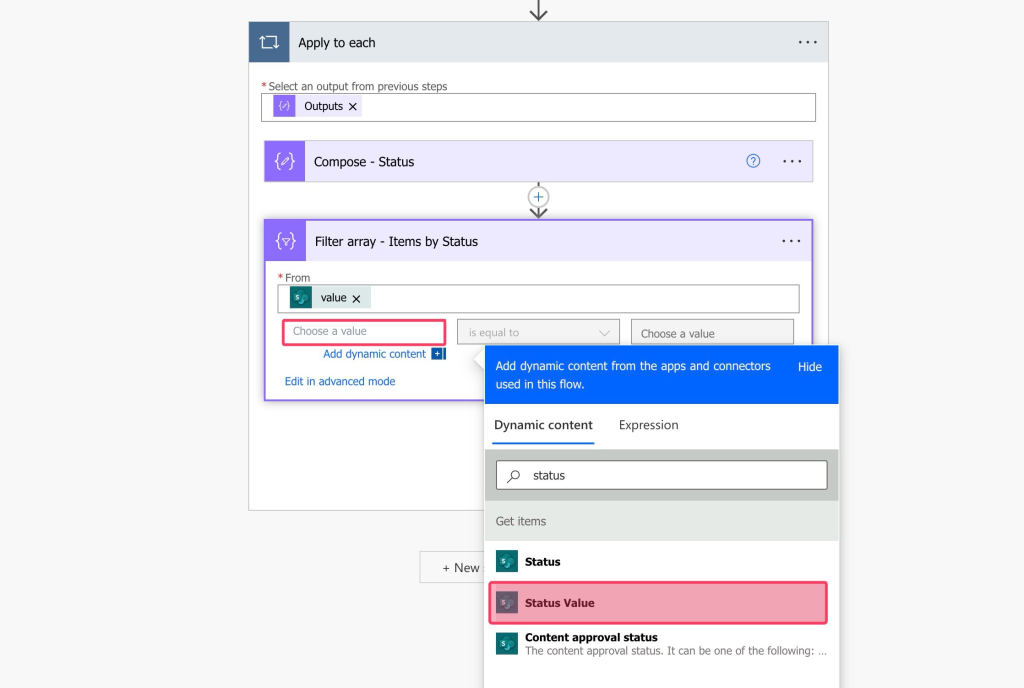
Leave the operator as is equal to.
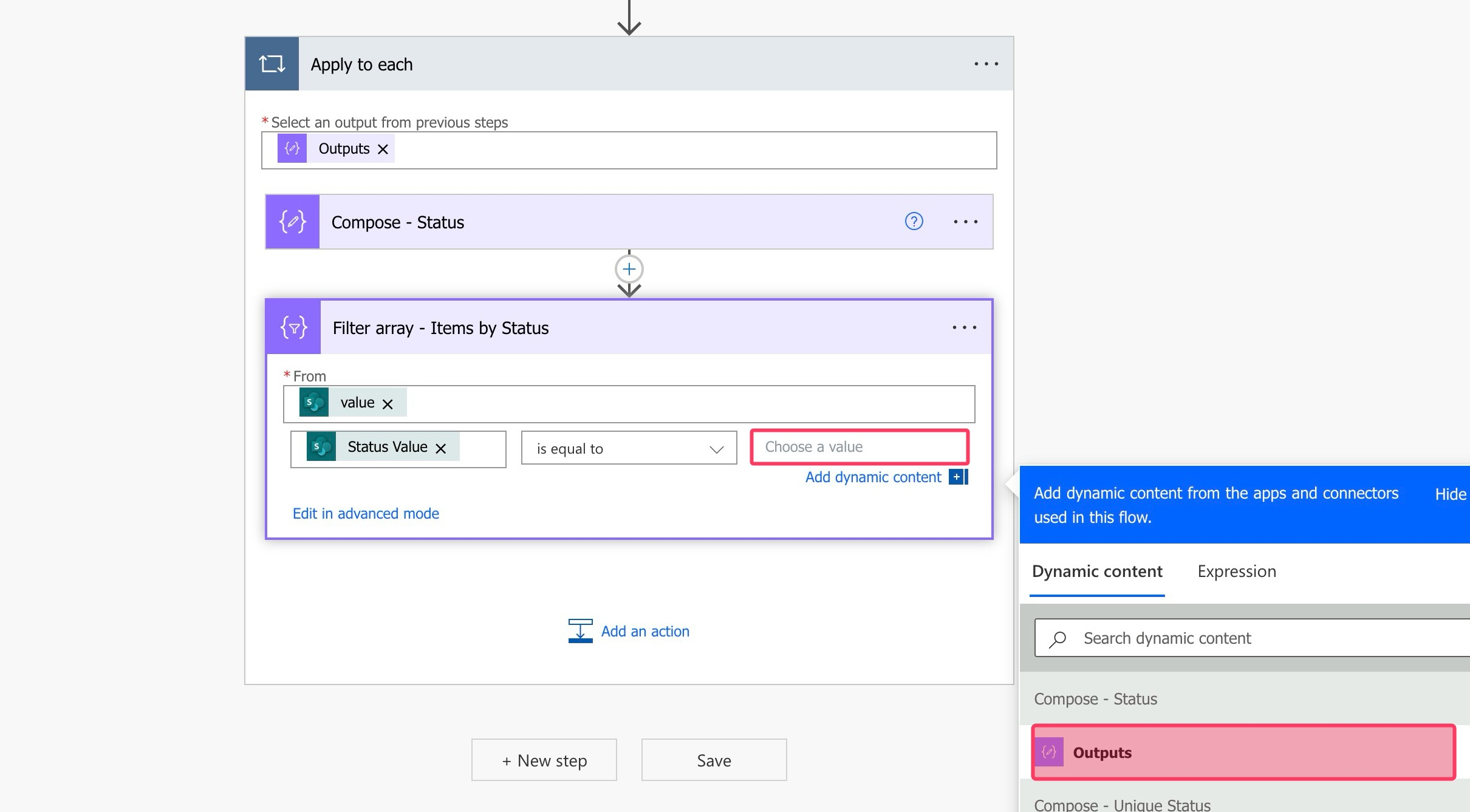
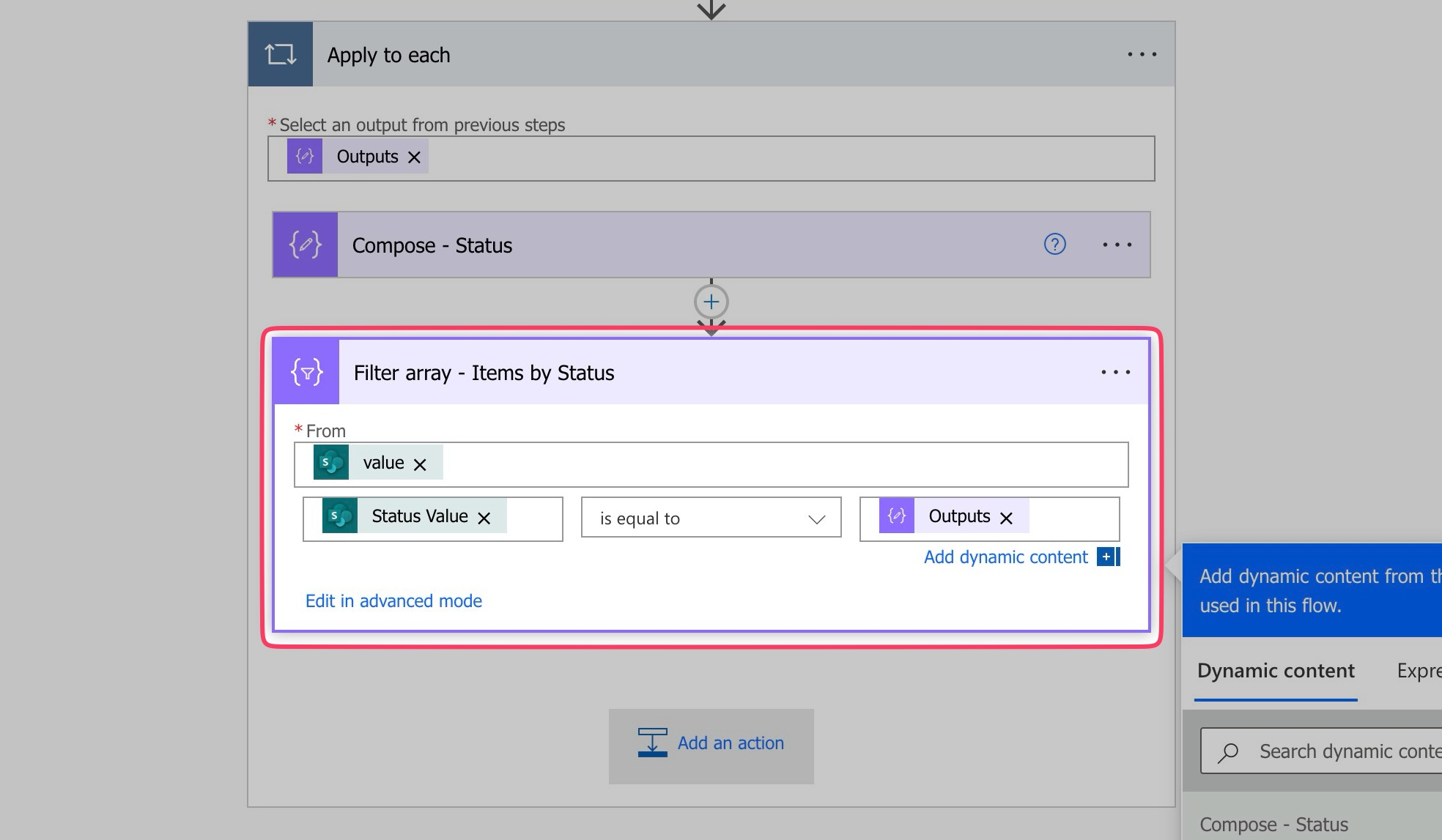
In the second value field, insert the value to compare to. In my case I’ll insert the output from the Compose action above.
If you didn’t use a Compose action in your flow, insert the Current Item dynamic content.
Add another Compose action. I’ll use this Compose action to output the count of items from the Filter Array action.
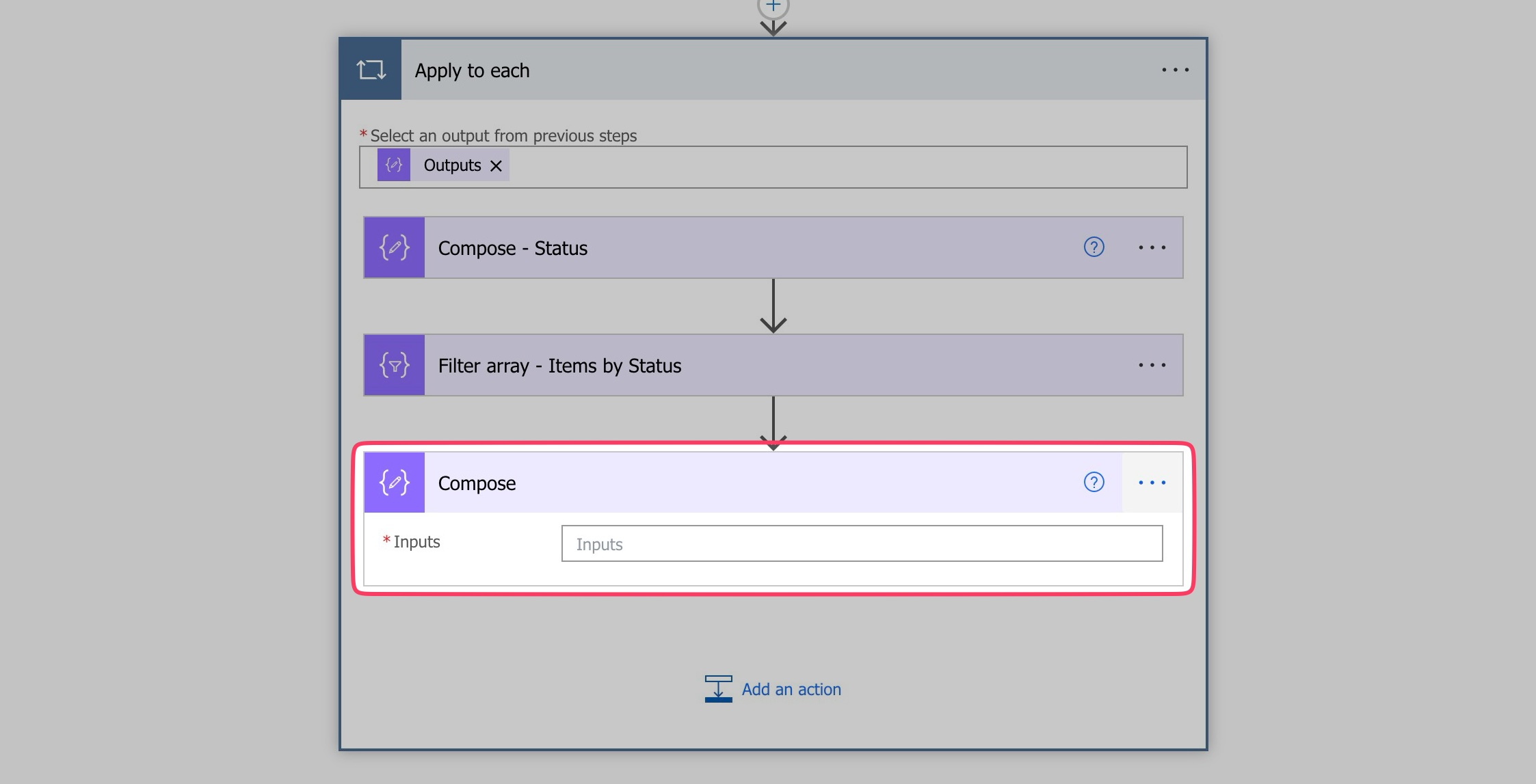
Insert an Expression.
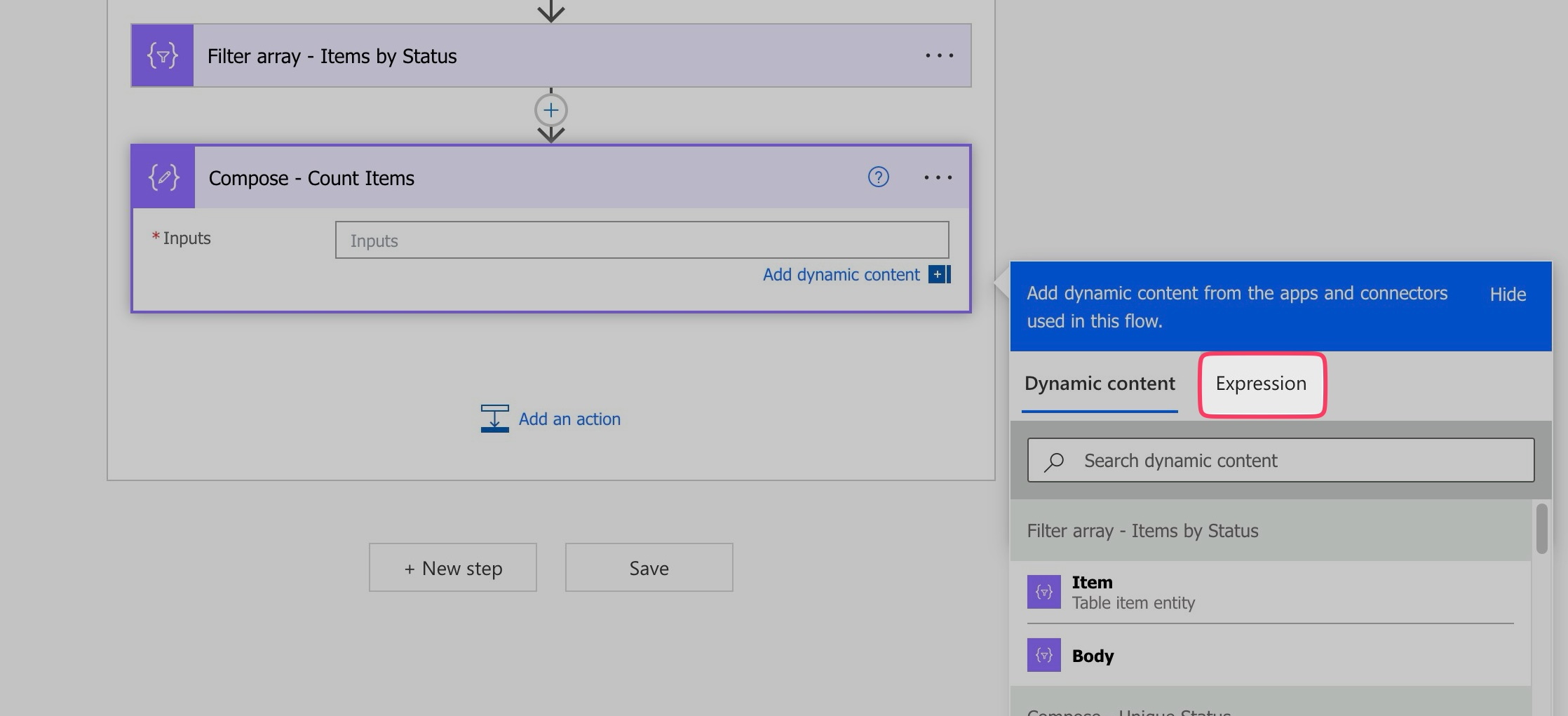
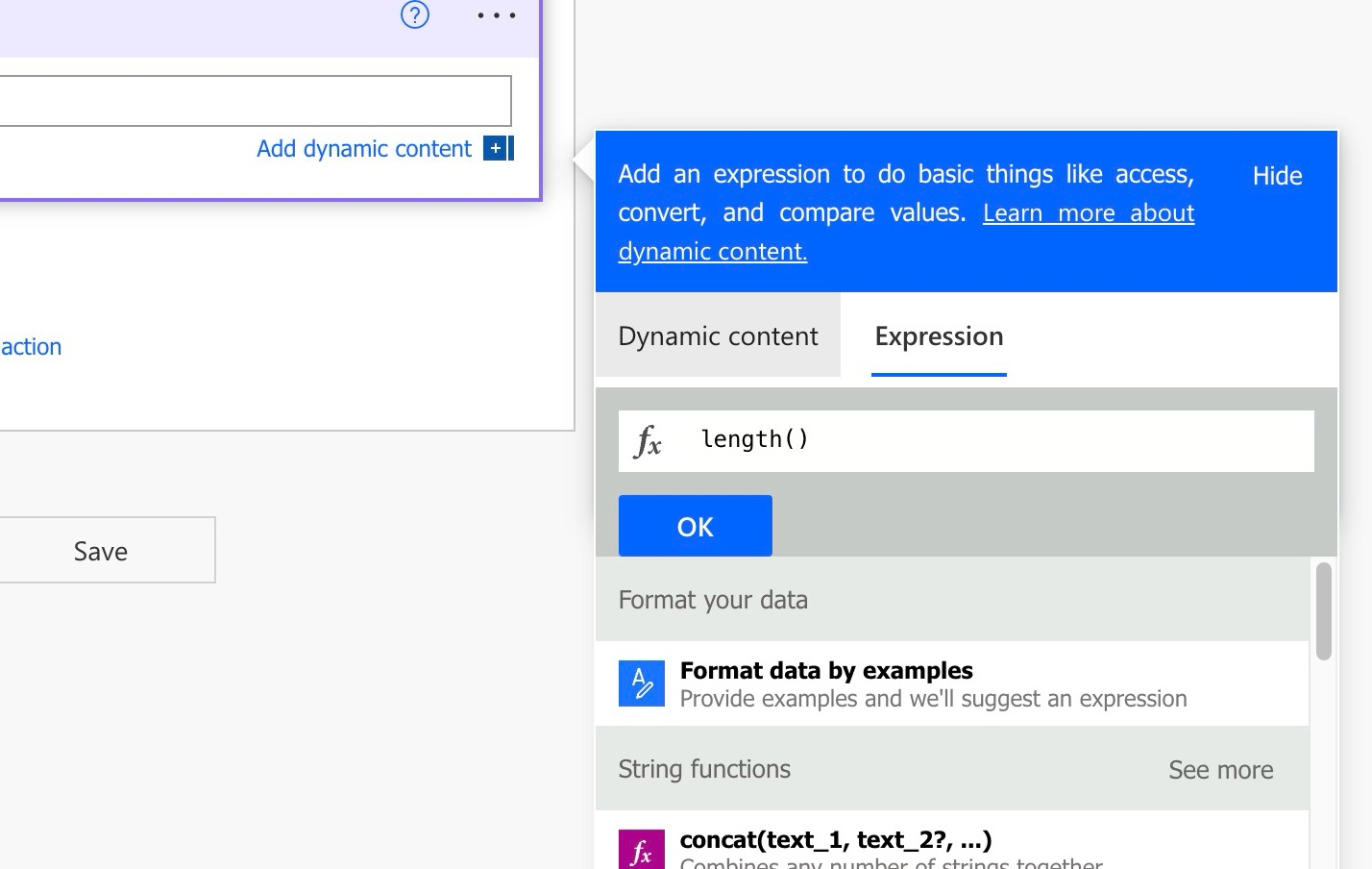
Use the length() function.
Click on the Dynamic content tab.
Insert the Body dynamic content from the Filter Array action above.
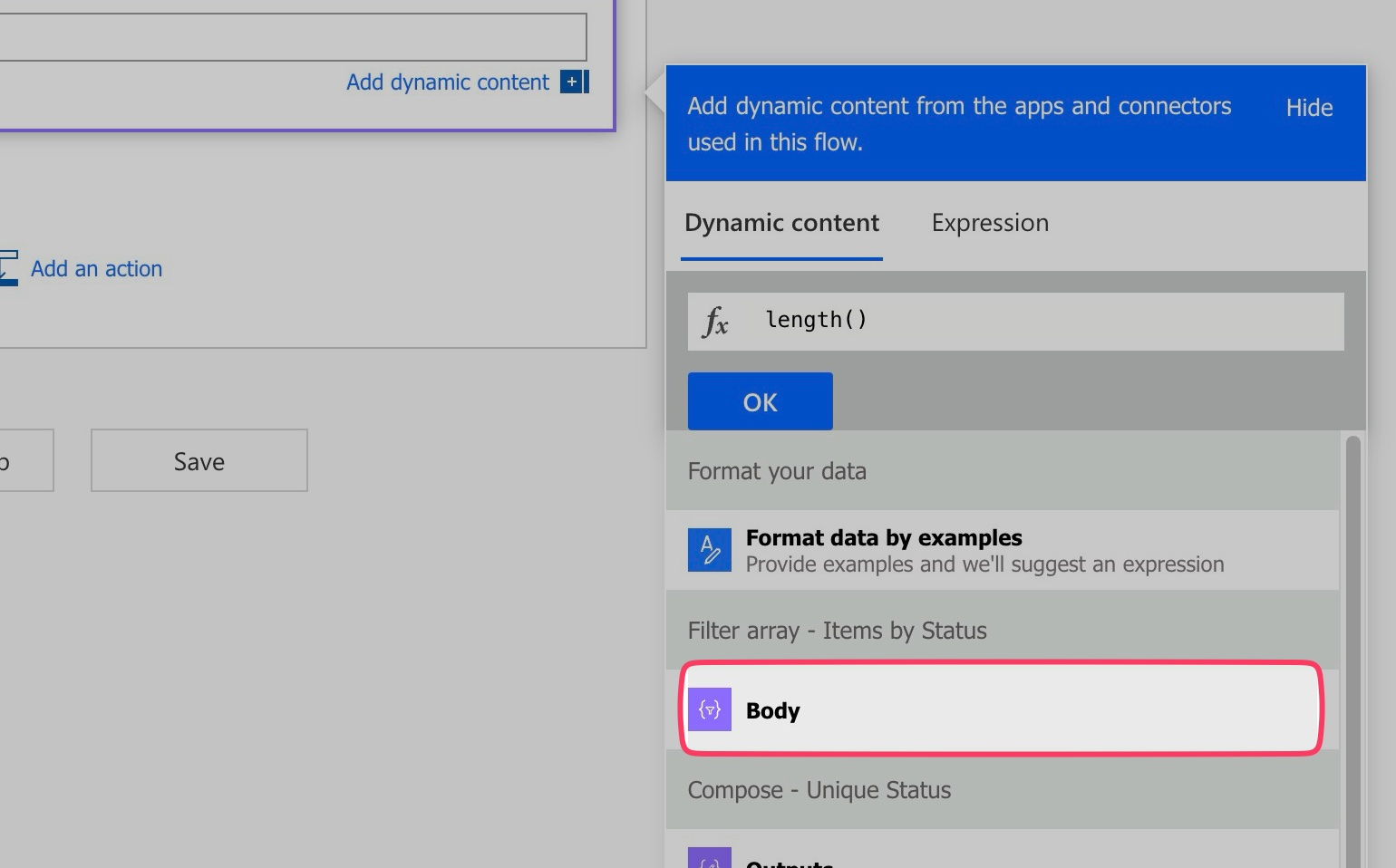
Click Ok.
Run a test.
Review the Outputs.
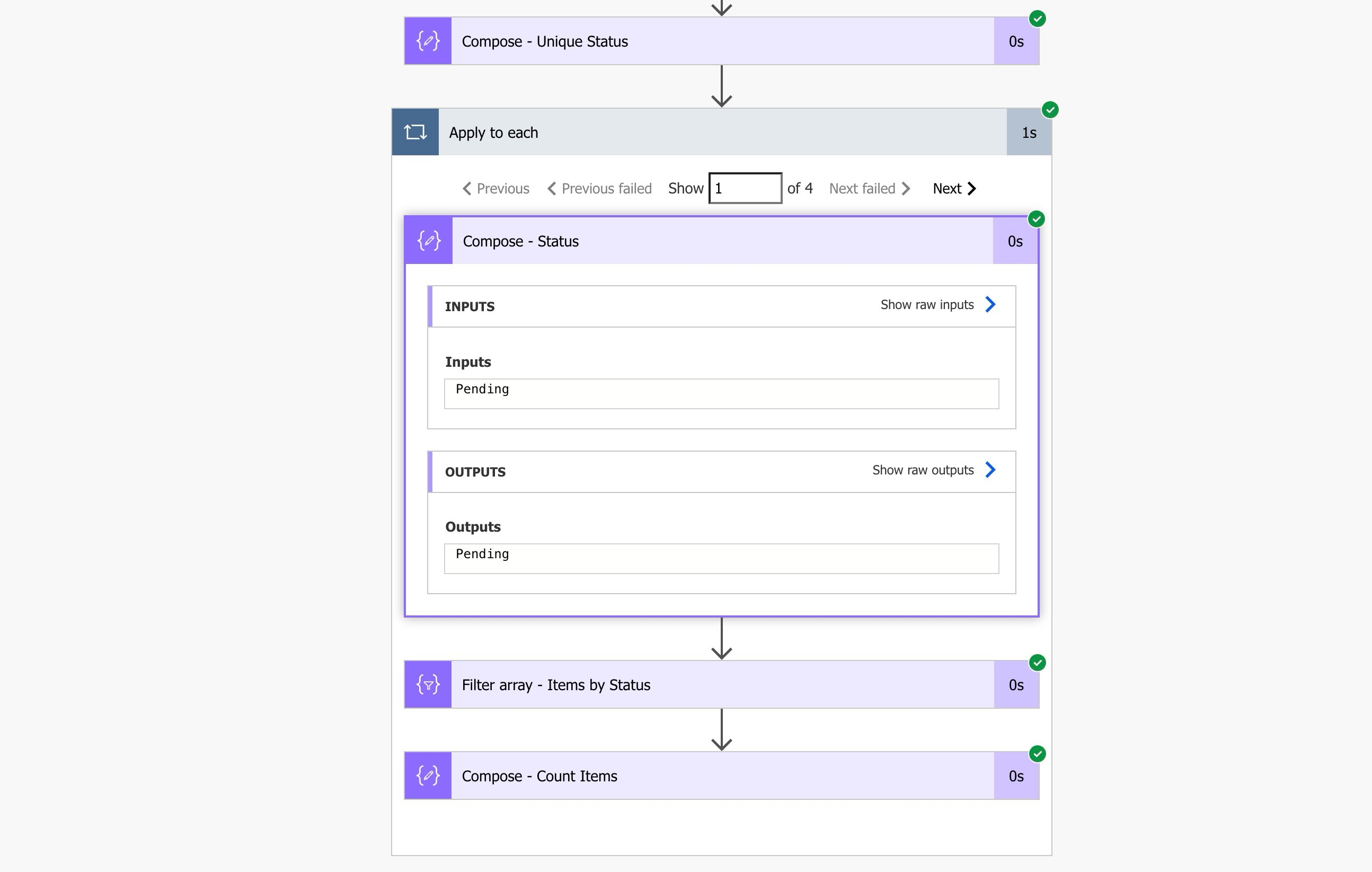
The Compose action (if you inserted one) will display the current status being looped through.
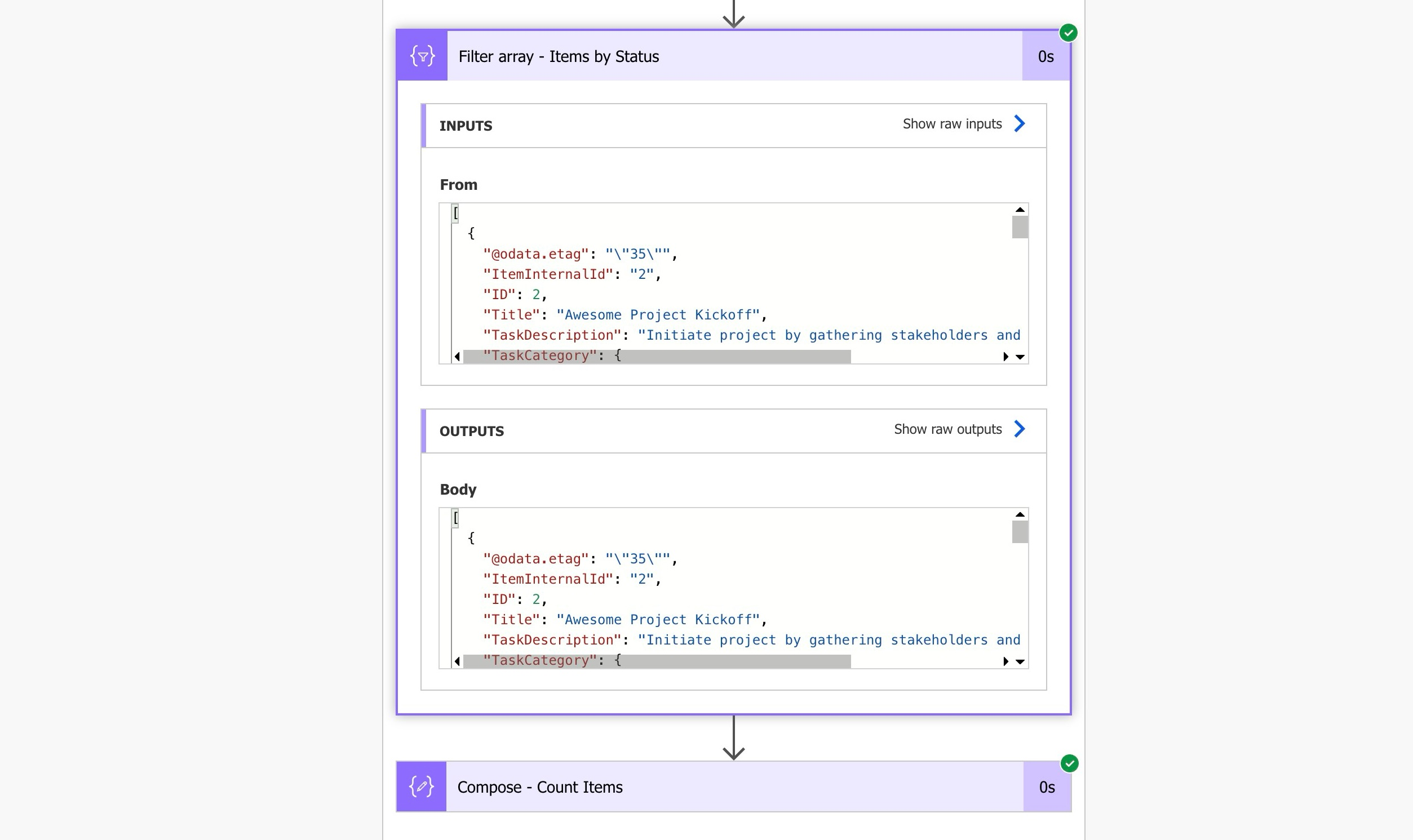
The Filter Array action will filter out your SP List items by the current status being looped through.
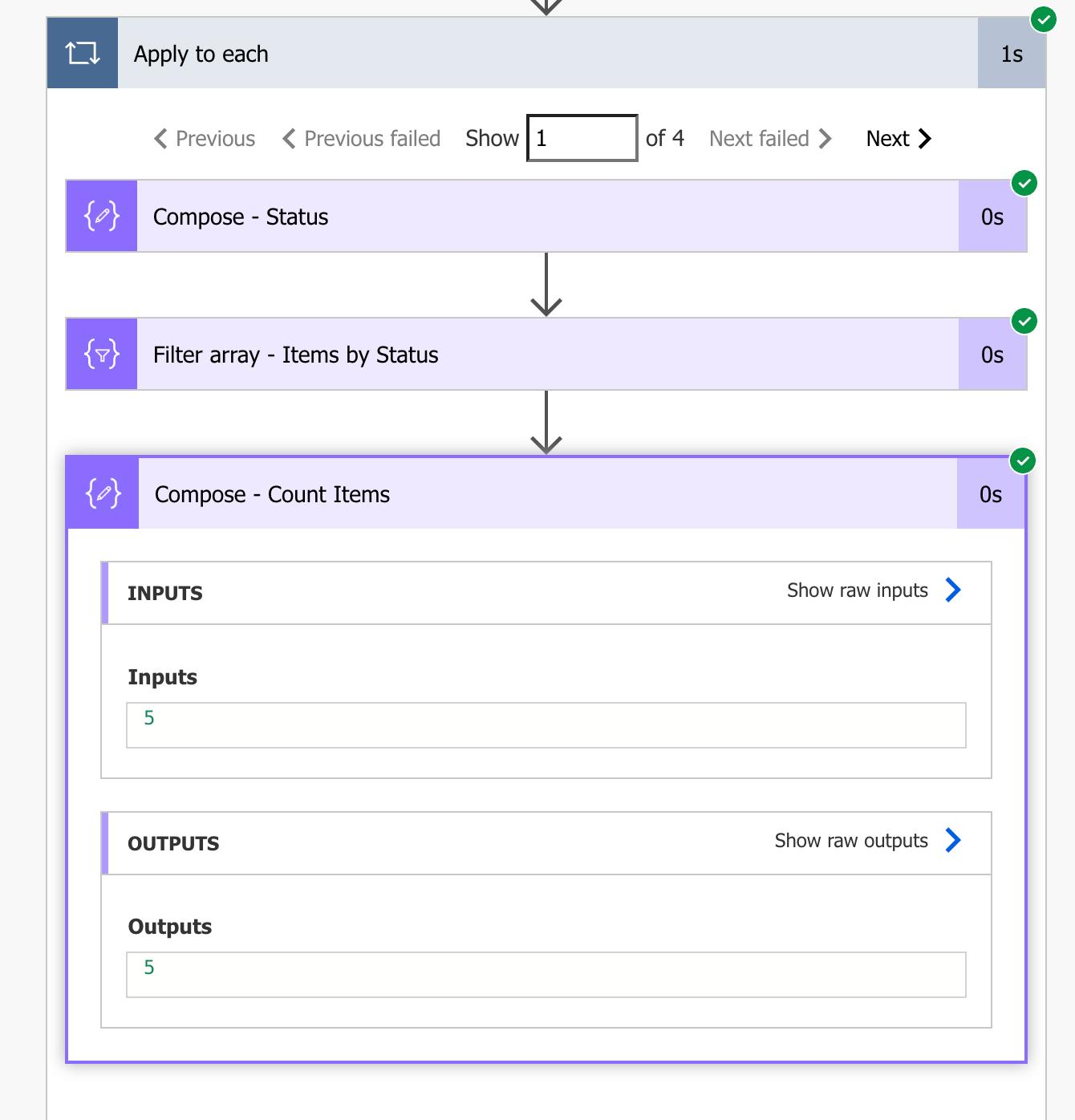
The Compose action will display the count of items from the Filter Array action.
Use the outputs from the Filter Array action in subsequent steps.
Next Steps
Now that you’ve grouped your SharePoint items by a column value, here are a few ways you can use the results inside the loop:
- Send a summary email for each group
- Create an HTML table to organize items visually
- Append data to an array variable for reporting
- Trigger a conditional step based on the group
Adjust the flow to suit your needs.